---
title: "OpenClaw Gog OAuth Setup: Every Error and Fix"
url: "https://managemyclaw.com/blog/openclaw-gog-oauth-setup-errors/"
date: "2026-03-18T10:00:00-04:00"
modified: "2026-03-29T12:00:55-04:00"
author:
name: "Rakesh Patel"
url: "https://www.rakeshpatel.co"
categories:
- "OpenClaw Guides"
tags:
- "gog"
- "google-api"
- "oauth"
- "openclaw"
- "Troubleshooting"
word_count: 2235
reading_time: "12 min read"
summary: "The error message reads: aes.KeyUnwrap(): integrity check failed. Your Google OAuth tokens are corrupted. See our Gmail Pub/Sub guide. Your OpenClaw agent can't read email, can't check calendar, ca..."
description: "The 4 Gog OAuth errors that break every OpenClaw Google Workspace deployment and how to fix each one in minutes."
keywords: "openclaw gog oauth, gog, google-api, oauth, openclaw, Troubleshooting"
language: "en"
schema_type: "Article"
related_posts:
- title: "OpenClaw Cron: Email Triage + Calendar Config"
url: "https://managemyclaw.com/blog/openclaw-cron-email-triage-calendar/"
- title: "Gmail Pub/Sub on a VPS: Fix the Org Policy Blocker That Stops Every Google Workspace Setup"
url: "https://managemyclaw.com/blog/gmail-pubsub-org-policy-vps-guide/"
- title: "Gmail Pub/Sub vs Polling for OpenClaw: Which One Actually Works?"
url: "https://managemyclaw.com/blog/openclaw-gmail-pubsub-vs-polling/"
---
# OpenClaw Gog OAuth Setup: Every Error and Fix
_Published: March 18, 2026_
_Author: Rakesh Patel_
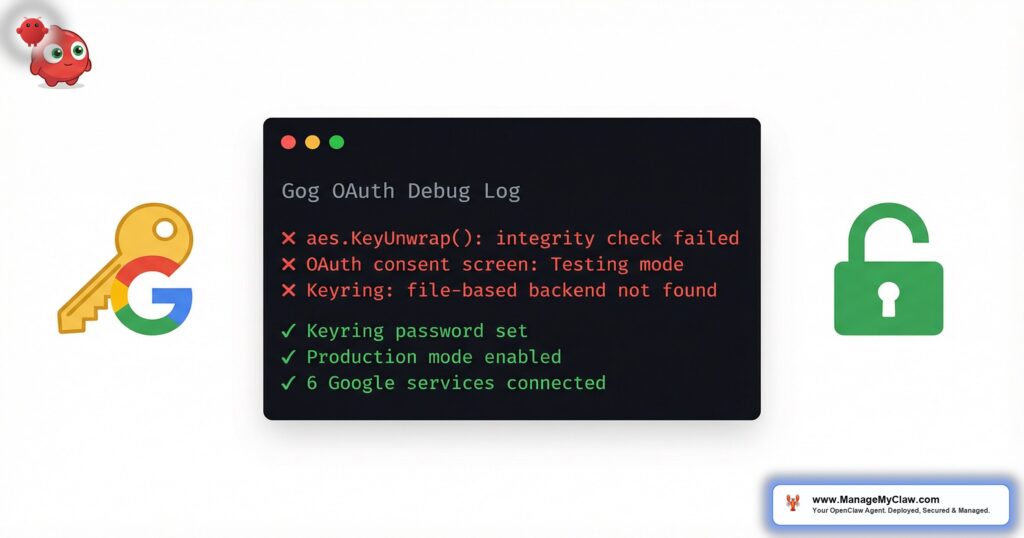
The error message reads: `aes.KeyUnwrap(): integrity check failed`. Your Google OAuth tokens are corrupted. See our [Gmail Pub/Sub guide](/blog/gmail-pubsub-org-policy-vps-guide/). Your OpenClaw agent can’t read email, can’t check calendar, can’t pull contacts, can’t do anything that touches Google Workspace. The agent is alive but functionally deaf.
Here’s how to fix it — and every other Gog OAuth error we’ve encountered across production deployments.
Jump to your errorIf you’ve landed on this page at 11 PM after your agent stopped working, jump straight to [Error #1: AES KeyUnwrap](#error-1). That’s probably your issue.
Background
## What Is Gog and Why OpenClaw Uses It
**[Gog](https://github.com/steipete/gogcli)** (steipete/gogcli) is an MIT-0 licensed CLI tool that gives OpenClaw access to Google Workspace. It covers 6 services: Gmail, Calendar, Drive, Contacts, Sheets, and Docs.
2,893Gog installs on ClawHub — the de facto standard for OpenClaw-to-Google integrationWithout Gog, your OpenClaw agent has no way to:
- **Read your inbox** — email triage, urgent alerts, draft replies
- **Check your calendar** — morning briefings, meeting reminders, conflict detection
- **Access Drive** — file lookups, document summaries
- **Pull contacts** — sender context, relationship history
- **Read Sheets/Docs** — data extraction, report generation
Gog handles OAuth token storage, refresh, and multi-service authentication through a local keyring. When Gog works, it’s invisible. When it breaks, everything downstream breaks with it.
Every Google Workspace workflow in OpenClaw — email triage, morning briefings, calendar automation — depends on Gog. If Gog OAuth is broken, your agent is an expensive process that can’t do its job.
Setup Flow
## The OAuth Setup Flow on a Headless Server
Before we get to the errors, here’s the full setup flow. Understanding it makes the error messages make sense.
1. 1**Create a Google Cloud Project.** In Google Cloud Console, create a new project and enable 6 APIs: Gmail, Calendar, Drive, People (Contacts), Sheets, and Docs.2. 2**Configure the OAuth Consent Screen.** Go to APIs & Services > OAuth consent screen. Select “External” user type. Fill in the app name and support email. Add the 6 scopes matching the APIs above. *This is where Error #2 lives.*3. 3**Create OAuth Client Credentials.** Go to APIs & Services > Credentials > Create Credentials > OAuth 2.0 Client ID. Select “Desktop app.” Download the JSON file.4. 4**Register Credentials with Gog.** $ gog auth credentials /path/to/client_secret.json✓ Credentials registered 5. 5**Authenticate Your Google Account.** On a headless server, Gog prints a URL. You open it on your local machine, authorize, and paste the redirect URL back. $ gog auth add yourname@gmail.com –services gmail,calendar,drive,contacts,sheets,docsOpen this URL in your browser: https://accounts.google.com/o/oauth2/…Paste redirect URL: _ 6. 6**Set the `GOG_ACCOUNT` environment variable.** Add `GOG_ACCOUNT=yourname@gmail.com` to `/etc/environment` for persistence. Without it, you need `--account` on every single command.
Verify everything worksRun `gog auth status`. You should see all 6 services listed as valid with a future expiration date. That’s the happy path. Now here’s what actually happens.
Error #1
## AES KeyUnwrap Integrity Check Failed
Error OutputCritical $ gog auth statusError: aes.KeyUnwrap(): integrity check failed **When you see it:** Running any `gog` command — *gog auth status*, *gog gmail search*, *gog calendar events* — after a reinstall, server migration, or password change.
**Root cause:** Gog stores OAuth tokens in an encrypted keyring. The keyring is locked with a password. If the password in your environment doesn’t match the password that encrypted the keyring, every attempt to decrypt the tokens fails with this AES error.
This happens when:
- You reinstalled Gog but the old keyring file is still on disk
- You changed `GOG_KEYRING_PASSWORD` without re-authenticating
- A previous setup used a different password and left stale keyring data
- The environment variable wasn’t loaded (new SSH session, systemd service without `EnvironmentFile`)
### The Fix
1. 1**Stop any running gog processes:** $ pkill -f “gog” 2. 2**Remove the corrupted keyring:** $ rm -rf ~/.local/share/keyrings/gogcli*$ rm -rf ~/.config/gogcli/keyring* 3. 3**Set (or reset) the keyring password:** $ export GOG_KEYRING_PASSWORD=“your-secure-password-here” 4. 4**Make it persistent:** Add the variable to `/etc/environment` and reload:
# Add to /etc/environmentGOG_KEYRING_PASSWORD=your-secure-password-here $ source /etc/environment 5. 5**Re-authenticate all 6 services:** $ gog auth credentials /path/to/client_secret.json✓ Credentials registered$ gog auth add yourname@gmail.com –services gmail,calendar,drive,contacts,sheets,docs✓ All 6 services authenticated 6. 6**Verify:** $ gog auth status✓ gmail — valid (expires 2026-04-25)✓ calendar — valid (expires 2026-04-25)✓ drive — valid (expires 2026-04-25)✓ contacts — valid (expires 2026-04-25)✓ sheets — valid (expires 2026-04-25)✓ docs — valid (expires 2026-04-25)
45 minTime to diagnose this error on our first production encounter“The server had Gog pre-installed from the hosting provider’s OpenClaw image, but the keyring password was set to something undocumented. Every gog command failed. Clearing the keyring and re-authenticating fixed it in under 10 minutes — but only once we understood what the error actually meant.”
ManageMyClaw deployment log, March 2026**Total time to fix:** 5-10 minutes, assuming you still have your OAuth client secret JSON file. If you don’t have the JSON file, add another 10 minutes to recreate it in Google Cloud Console.
Save yourself the debuggingOur [Starter plan](/pricing/) handles the full Gog OAuth setup, including keyring configuration and multi-service authentication, as part of every deployment.
Error #2
## OAuth Consent Screen in Wrong Mode
Error OutputAccess Denied $ gog auth add yourname@gmail.com –services gmail,calendar,driveError 403: access_denied *The developer hasn’t given you access to this app.*
**When you see it:** During the browser-based OAuth authorization step. You click “Allow” and get bounced back.
**Root cause:** Google Cloud projects have 2 OAuth consent screen modes:
- **Testing mode** — only allows users explicitly listed as “test users” (max 100)
- **Production mode** — allows any Google account, but requires Google verification for sensitive scopes
New projects default to testing mode. If you didn’t add your Google account email as a test user, Google blocks the authorization.
### The Fix
1. 1**Go to APIs & Services > OAuth consent screen** in Google Cloud Console2. 2**Under “Test users,” click “Add Users”**3. 3**Enter your email:** `yourname@gmail.com`4. 4**Save and retry** the `gog auth add` command
The production mode trapIf you publish to production mode for Gmail and Calendar scopes, Google may require you to submit for verification — which takes **2-6 weeks**. For a single-user OpenClaw agent, testing mode is the right choice. Stay in testing mode and add the client’s email as a test user.
**Why this matters:** This error looks like a permissions problem on your server, but it’s a Google Cloud Console configuration issue. No amount of debugging on the VPS will fix it — you need to change a setting in the browser.
Error #3
## File-Based Keyring on Headless Linux
Error OutputKeyring Failure $ gog auth add yourname@gmail.com –services gmailError: failed to open keyring: The name org.freedesktop.secrets was not provided by any .service files
# Or alternatively:Error: keyring error: cannot open keyring backend **When you see it:** Running *gog auth add* on a headless Linux server (no desktop environment).
**Root cause:** By default, Gog tries to use the system keyring — macOS Keychain on Mac, GNOME Keyring or KDE Wallet on Linux. Headless servers don’t have a desktop environment, so there’s no system keyring service running. Gog can’t find anywhere to store the encrypted tokens.
### The Fix
1. 1**Tell Gog to use a file-based keyring:** $ export GOG_KEYRING_BACKEND=file 2. 2**Set the encryption password:** $ export GOG_KEYRING_PASSWORD=“your-secure-password-here” 3. 3**Make both persistent across reboots and SSH sessions.** Add both variables to `/etc/environment` and run `source /etc/environment`4. 4**Run auth:** $ gog auth add yourname@gmail.com –services gmail,calendar,drive,contacts,sheets,docs✓ All 6 services authenticated
Permission hardening — don’t skip thisLock down `/etc/environment` — it contains your keyring password:
$ chmod 600 /etc/environment$ chown root:root /etc/environment✓ Permissions locked
### For Systemd Services
OpenClaw gateway and gog-gmail-watch need these environment variables available to the service. Add an `EnvironmentFile` directive pointing to `/root/.secrets/gog.env` containing `GOG_KEYRING_BACKEND=file`, `GOG_KEYRING_PASSWORD`, and `GOG_ACCOUNT`. Lock it down with `chmod 600`.
“Every VPS deployment we’ve done runs into this. macOS has Keychain. Linux desktops have GNOME Keyring. Headless Ubuntu has nothing. The fix is 3 environment variables, but the error message gives you zero indication that ‘file-based keyring’ is even an option.”
ManageMyClaw deployment teamError #4
## Multi-Service Auth Sequence Issues
Error OutputToken Failure $ gog gmail search “is:unread”Error: token refresh failed for service: gmailError: oauth2: cannot fetch token: 400 Bad Request Or more subtly: *gog auth status* shows some services as “valid” and others as “expired” or missing entirely.
**Root cause:** When you authenticate with `--services gmail,calendar,drive,contacts,sheets,docs`, Gog requests scopes for all 6 services in a single OAuth flow. If the consent screen doesn’t have all 6 scopes configured, or if the token grant fails partway through, you end up with partial authentication.
Token refresh failures happen when:
- The OAuth client was created with limited scopes
- Google revoked one scope but not others (happens if user removes app access in Google Account settings)
- The token file got corrupted during a partial write (server restart during auth)
### The Fix
1. 1**Check which services are authenticated:** $ gog auth status
# Look for services listed as “expired” or missing 2. 2**Re-authenticate ALL at once:** $ gog auth add yourname@gmail.com –services gmail,calendar,drive,contacts,sheets,docs✓ All 6 services authenticated 3. 3**Verify all 6 are present and valid:** $ gog auth status✓ All 6 services valid 4. 4**Test each service individually:** $ gog gmail search “is:unread” –max 3✓ 3 results$ gog calendar events primary –from today –to tomorrow✓ Events retrieved$ gog contacts list –max 3✓ 3 contacts$ gog drive files –max 3✓ 3 files
PreventionAlways authenticate all 6 services in a single `gog auth add` command. Don’t authenticate Gmail first and Calendar later — that creates separate token grants that can desync. One command, all services, one authorization flow.
**Why this matters:** Partial authentication is the sneakiest error because your agent partially works. Morning briefings pull calendar data but fail on email. Email triage works but can’t check contacts for sender context. You’ll spend hours debugging the wrong thing because “it was working yesterday.”
Automation
## The Automated Fix: How We Handle Gog OAuth
We’ve scripted the entire OAuth setup and error recovery process. Our deployment scripts detect the server environment, choose the right keyring backend, generate secure passwords, clear stale data, and verify every service individually.
< 2 minOur scripted Gog OAuth setup time — vs. 30-90 min DIYThe script handles: environment detection (headless vs. desktop), keyring backend selection, secure password generation, stale keyring cleanup, OAuth credential registration, all-6-service authentication, and individual service verification. The 4 errors described in this post are `if` statements in our script.
For the full deployment process including [Pub/Sub email monitoring](/blog/openclaw-gmail-pubsub-vs-polling/) (which requires working OAuth), nginx configuration, and [security hardening](/security-hardening/), see our [complete Google Workspace deployment walkthrough](/blog/openclaw-google-workspace-deployment/).
Comparison
## DIY vs ManageMyClaw: Gog OAuth Setup
| Factor | DIY | ManageMyClaw |
|---|---|---|
| **Setup time** | 30-90 min (first time, no errors) | Under 2 minutes (scripted) |
| **Error diagnosis** | You debug AES errors at 11 PM | We’ve seen every error; scripted fixes |
| **Keyring configuration** | Manual — 3 env vars, permission hardening, systemd | Automated — correct backend, password generated, locked down |
| **Multi-service auth** | Manual — hope all 6 succeed on first try | Scripted — each service verified individually |
| **Consent screen setup** | You navigate Google Cloud Console | We configure it or guide you through it |
| **Token refresh monitoring** | You find out when something stops working | Monitored — we catch expired tokens proactively |
| **Cost** | Your time (at $200-$500/hr founder rates: $100-$750) | Included in every plan, [starting at $499](/pricing/) |
FAQ
## Frequently Asked Questions
What is the aes.KeyUnwrap(): integrity check failed error in Gog?
It means the password in your `GOG_KEYRING_PASSWORD` environment variable doesn’t match the password that was used to encrypt the keyring file. This happens after reinstalls, server migrations, or if the environment variable wasn’t loaded. The fix is to clear the old keyring (`rm -rf ~/.local/share/keyrings/gogcli*`), set the correct password, and re-authenticate all services with `gog auth add`.
Do I need to push my OAuth consent screen to production mode?
No. For a single-user OpenClaw deployment, testing mode works indefinitely. Add your email as a test user in Google Cloud Console, and tokens will work without Google verification review. Production mode only makes sense for multi-user applications, and it can require a 2-6 week review process for sensitive scopes like Gmail.
Why does Gog fail on my Linux VPS but work on my Mac?
macOS has Keychain built in. Headless Linux servers have no system keyring. You need to set `GOG_KEYRING_BACKEND=file` and `GOG_KEYRING_PASSWORD` in your environment. Without these, Gog can’t store OAuth tokens. Add both to `/etc/environment` for persistence across reboots and SSH sessions.
How often do Gog OAuth tokens need to be refreshed?
Gog handles token refresh automatically — you don’t need to re-authenticate manually. Google OAuth tokens typically last 1 hour, and Gog uses the refresh token to get new access tokens transparently. The refresh token itself doesn’t expire unless you revoke app access in your Google Account settings or remain inactive for 6 months (for apps in testing mode with sensitive scopes). If you see token refresh errors, re-run `gog auth add` with all 6 services.
Skip the Debugging. Get a Working Agent.Every ManageMyClaw deployment includes full Gog OAuth setup — Google Cloud project configuration, keyring setup, multi-service authentication, and token monitoring. Starting at $499.[See Plans and Pricing](/pricing/)[Learn about our managed deployment service](/managed-openclaw-deployment/)
Not affiliated with or endorsed by the OpenClaw open-source project.
---
_View the original post at: [https://managemyclaw.com/blog/openclaw-gog-oauth-setup-errors/](https://managemyclaw.com/blog/openclaw-gog-oauth-setup-errors/)_
_Served as markdown by [Third Audience](https://github.com/third-audience) v3.5.3_
_Generated: 2026-03-29 16:00:56 UTC_