OpenClaw has 250,000+ GitHub stars and 196 contributors. It runs on a $12/month VPS. It can triage your email, manage your calendar, automate client onboarding, and respond to customer inquiries across 4 channels simultaneously.
But most people who deploy it do not understand how it works. They follow a tutorial, copy a Docker command, and hope for the best. When something breaks — and it will, because OpenClaw ships 7 updates in 2 weeks — they do not know where to look or what to fix.
Understanding the architecture is not an academic exercise. It is the difference between debugging a broken workflow in 5 minutes and spending 3 hours guessing.
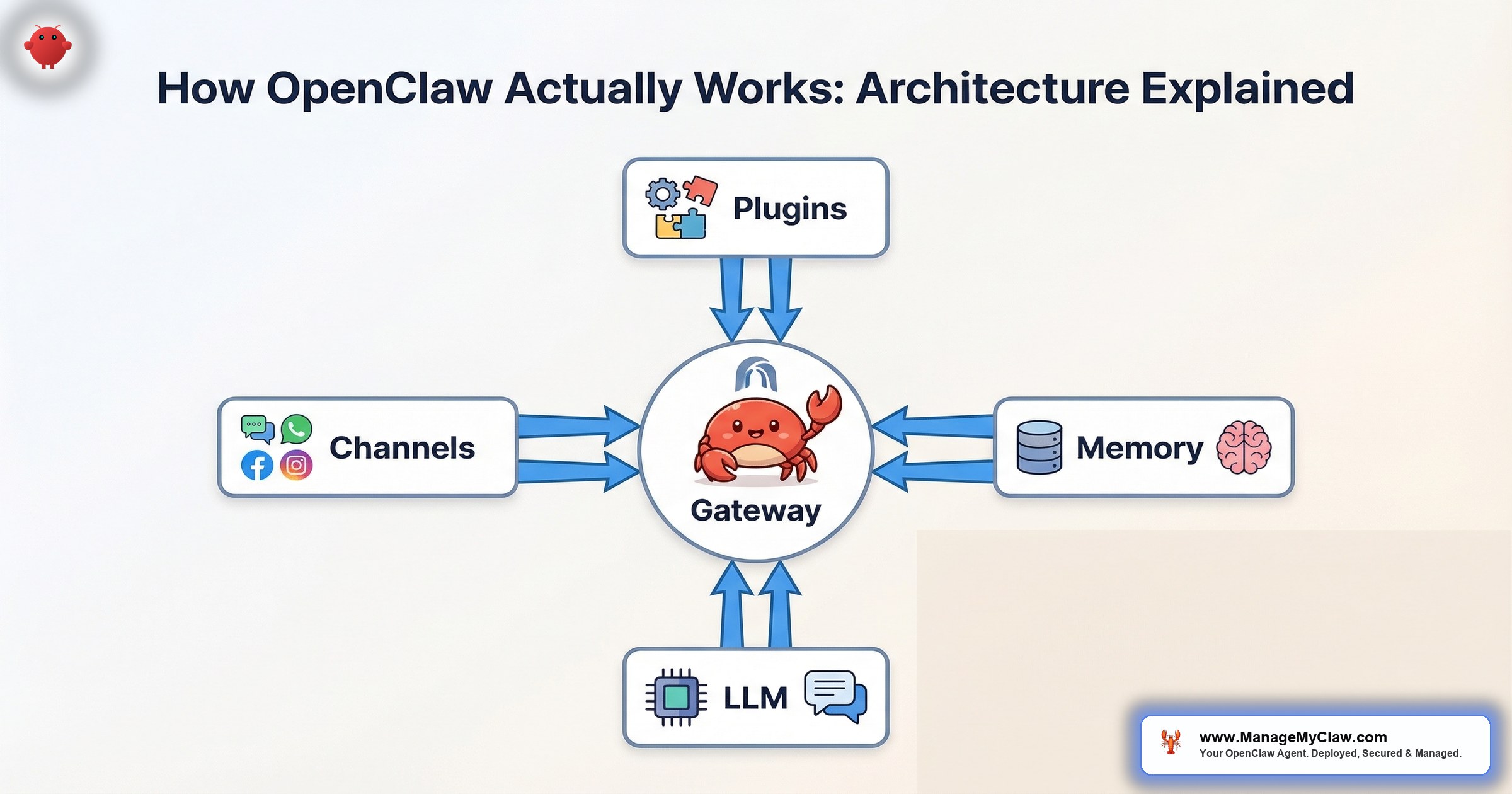
This post explains how OpenClaw actually works — from the Gateway that receives messages to the system prompt that defines behavior, from the plugin system that connects tools to the memory layer that gives the agent continuity.
The Gateway: Where Everything Starts
The OpenClaw Gateway is the process that receives incoming messages and routes them to the agent. Think of it as the front door. Every message — from Telegram, WhatsApp, Slack, Discord, or the web interface — enters through the Gateway.
What the Gateway does:
- Listens for incoming messages on configured channels
- Authenticates the connection (verifies the message source is legitimate)
- Routes the message to the appropriate agent (in multi-agent setups)
- Returns the agent’s response to the originating channel
Security note: The Gateway should bind to localhost only — not 0.0.0.0. If the Gateway binds to all interfaces, anyone on the internet can send messages to your agent. This is the single most common misconfiguration in DIY deployments. Tailscale VPN handles remote access; the Gateway stays on localhost.
When the Gateway is down, nothing works. No messages in, no responses out. The “error 1008” that many users encounter after an update is a Gateway token issue — the Gateway’s authentication token expired or was invalidated by the update. Fix: restart the Gateway process. Takes 30 seconds.
System Prompt Assembly: The Agent’s Operating Manual
The system prompt is not just a paragraph of instructions. In OpenClaw, it is assembled from multiple sources into a single instruction set that defines who the agent is, what it can do, and how it should behave.
System prompt components:
1. Base personality and role. Who the agent is: “You are an executive assistant for [Name]. You manage email, calendar, and daily briefings. You are precise, concise, and always confirm before taking actions that modify data.”
2. Safety constraints. Hard rules that the agent must always follow: “Never delete emails. Never send messages without explicit approval. Never access files outside your designated workspace.” These are system-level instructions — they survive context compaction because the system prompt is not subject to the same compression as conversation history.
This is the critical distinction that caused the inbox-wipe incident. Summer Yue’s “confirm before acting” instruction was in the conversation history (user-level), not in the system prompt (system-level). When context compaction compressed old conversation turns, the instruction was lost. System prompt instructions do not get compacted.
3. Tool definitions. Which tools the agent has access to and what each tool does. This is where the agent learns it can read Gmail, check Google Calendar, and query Stripe — and, critically, what it cannot do with each tool.
4. Workflow instructions. Step-by-step procedures for each workflow: “Every morning at 8 AM, check the calendar for today’s meetings, pull unread emails flagged as priority, check weather for [location], and compile into a briefing message. Deliver to Telegram.”
5. Memory context. Supermemory provides persistent context from previous sessions: user preferences, learned patterns, and relevant history. This context is injected into the prompt at assembly time so the agent has continuity across sessions.
Why this matters: Most prompt engineering advice treats the prompt as a single text block. In OpenClaw, it is a modular construction. Understanding which component holds which instruction tells you where to look when behavior goes wrong. If the agent starts deleting things, check the safety constraints in the system prompt. If the agent forgets a user preference, check the memory configuration. If the agent cannot access a tool, check the tool definitions.
The Plugin System: How the Agent Uses Tools
OpenClaw is an agent framework, not a standalone AI. It becomes useful through plugins (called “skills” on ClawHub) that connect it to external tools and services.
How tool execution works:
1. The agent receives a task: “Check my email for priority messages.”
2. The agent determines which tool to use: the Gmail skill.
3. The agent constructs a tool call with parameters: “Read inbox, filter by unread, sort by date.”
4. OpenClaw executes the tool call through Composio OAuth (the agent never handles raw credentials).
5. The tool returns results to the agent.
6. The agent processes the results and responds: “You have 4 priority emails. 2 from clients, 1 from your investor, 1 meeting request.”
ClawHub marketplace: ClawHub has 13,729+ skills covering Gmail, Slack, Notion, Stripe, GitHub, Google Calendar, and hundreds of other services. But the ClawHavoc attack planted 2,400+ malicious skills on ClawHub — 1 in 5 submissions were malicious, exfiltrating SSH keys and API tokens. Every skill needs vetting before installation. The barrier to publishing a skill on ClawHub is a SKILL.md file and a one-week-old GitHub account.
Tool permission allowlists: Even with vetted skills, granular permissions matter. The Gmail skill can be configured to allow read and draft operations while blocking send and delete. This is enforced at the tool level, not the prompt level — even if the agent decides it should delete an email, the tool will refuse the operation.
Memory: How the Agent Remembers
AI models do not have memory between sessions by default. Every conversation starts from zero. OpenClaw uses Supermemory to give the agent persistence.
Short-term memory: The current conversation context. This is what the model sees when generating a response. It includes the system prompt, recent messages, and tool results. Short-term memory has a size limit (the model’s context window), and when it fills up, context compaction compresses older messages to make room for new ones.
Long-term memory (Supermemory): Persistent storage that survives across sessions. The agent stores user preferences, learned patterns, and key context: “User prefers Slack over email for notifications. User’s high-priority clients are [list]. User’s standing meetings are Monday standup and Thursday demo.” This information is retrieved and injected into the prompt at the start of each session.
Pinned memory: Critical context that the agent should always have access to, regardless of session or compaction. “Never delete emails” can be stored as pinned memory in addition to the system prompt — belt and suspenders. Pinned memory is not subject to compaction.
Context compaction — the dangerous one: When short-term memory fills up, OpenClaw compresses older conversation turns into a summary to free space. This is where user-level instructions can be lost. If you told the agent “always confirm before sending emails” in conversation turn 3, and by turn 50 the context is full, that instruction might get summarized away. System prompt instructions and pinned memory are exempt from compaction. This is why safety constraints belong in the system prompt, not in chat.
On r/AI_Agents, the most common complaint about OpenClaw is “my agent forgot what I told it.” In nearly every case, the instruction was in the conversation history, not in the system prompt or pinned memory. Context compaction is not a bug — it is a design tradeoff. But understanding where to put which instructions is the difference between a reliable agent and one that periodically “forgets” its rules.
Channels: How the Agent Communicates
OpenClaw supports multiple delivery channels through plugins: Telegram, WhatsApp, Slack, Discord, email, and a web interface. Each channel connects to the same Gateway and the same agent.
Single-channel setup: The simplest deployment uses 1 channel. Most personal productivity setups use Telegram because it is free, has no message restrictions, and supports rich formatting. The agent sends and receives all messages through Telegram.
Multi-channel setup: Business deployments often use 2–4 channels: Slack for internal team notifications, WhatsApp for customer service, email for formal communications, and Telegram as a personal control channel. The agent maintains context across all channels through its shared memory layer.
Channel-specific behavior: The system prompt can define different behavior per channel: “On Telegram, respond in brief bullet points. On Slack, use threaded replies. On email, use formal formatting with a greeting and sign-off.” Same agent, different output format based on where the message came from.
The Update Lifecycle
OpenClaw ships 7 updates in 2 weeks. Each update can change configuration formats, add new features, deprecate old ones, or introduce bugs. Understanding the update process is essential for maintaining a working deployment.
What happens during an update:
- New Docker images are published to the container registry
- Pulling the new image replaces the running version
- Configuration format changes may require manual migration
- Plugin compatibility may break (a skill that worked on v0.4.12 may not work on v0.4.14)
- The Gateway may need a token refresh
Last month, an update silently changed the Composio config format with no migration guide. Users who auto-updated discovered it when their morning briefing stopped arriving. That is the update lifecycle without managed care.
This is why testing updates in a staging environment before applying them to production matters. And why knowing how to back up and restore your OpenClaw configuration is not optional.
The Bottom Line
OpenClaw is a Gateway that receives messages, a system prompt that defines behavior, a plugin system that connects tools, a memory layer that provides continuity, and a channel system that delivers responses. Understanding these 5 components tells you where to look when something breaks, what to configure when setting up a new workflow, and why certain architectural decisions (system-level vs. user-level instructions, pinned memory vs. conversation history) matter more than they initially appear.
The difference between a deployment that works reliably and one that “sort of works sometimes” is understanding these 5 layers well enough to configure them correctly from day one.
Frequently Asked Questions
What is the difference between the system prompt and conversation history?
The system prompt is a fixed instruction set that the model receives at the start of every interaction. It defines the agent’s role, safety constraints, tool access, and workflow instructions. It is not subject to context compaction. Conversation history is the record of messages between you and the agent within a session. When the history gets too long, context compaction compresses older messages. Instructions in conversation history can be lost during compaction. Safety-critical rules belong in the system prompt.
What is context compaction and why does it matter?
Context compaction is the process where OpenClaw compresses older conversation turns to free up space in the model’s context window. It matters because instructions given in early conversation turns can be summarized away during compaction. This is exactly what happened in the inbox-wipe incident — the “confirm before acting” instruction was compacted out. The fix: put critical instructions in the system prompt or pinned memory, not in conversation messages.
How does OpenClaw decide which tool to use?
The system prompt includes definitions of each available tool — what it does, what parameters it accepts, and what it returns. When the agent receives a task, the AI model reasons about which tool best matches the task. “Check my email” maps to the Gmail skill. “What meetings do I have today” maps to the Google Calendar skill. The model makes this decision based on the tool definitions in the prompt, not hardcoded logic.
Can I run multiple agents on one VPS?
Yes. The Business tier supports up to 2 agents on a single VPS. Each agent has its own system prompt, memory, and tool configuration, but they share the same Gateway and infrastructure. A common setup: one agent handles personal productivity (email, calendar, briefings) while a separate agent handles customer service across public channels. Each agent operates independently with its own permissions and safety constraints.
What happens when an OpenClaw update breaks my setup?
It depends on whether you have backups. If you have a snapshot of your configuration and Docker images, you can roll back to the previous version in minutes. If you do not, you need to diagnose the breaking change, check the release notes (if any), and manually fix the configuration. This is why managed care tests every update in staging before applying it to production deployments — the breaking changes get caught before they reach your agent.
Want the architecture configured correctly from day one?
ManageMyClaw handles Gateway configuration, system prompt engineering, plugin vetting, memory setup, and channel integration — starting at $499 with security hardening at every tier. Live in under 60 minutes.
Get Started — From $499Related reading: Managed OpenClaw Deployment • OpenClaw Prompt Engineering: Twenty Prompts That Actually Work • OpenClaw for Personal Productivity
Not affiliated with or endorsed by the OpenClaw open-source project.