“Expect rough edges. NemoClaw is alpha software. The onboarding wizard, sandbox networking, and local inference routing all have documented issues that require manual intervention.”
— NemoClaw GitHub README, March 2026
NemoClaw is NVIDIA’s enterprise security wrapper for OpenClaw — the open-source AI agent framework that combines kernel-level sandboxing via OpenShell, a YAML policy engine for per-action authorization, and a privacy router for local inference. NVIDIA launched NemoClaw at GTC 2026 with 17 enterprise partners including Adobe, Salesforce, SAP, CrowdStrike, and ServiceNow. It is alpha software. That means documented issues, incomplete workarounds, and platform gaps that will surface during your first deployment.
This post catalogs every known NemoClaw issue with a tested fix or workaround as of March 2026. Not theoretical problems. GitHub issues with numbers, community-reported failures with reproduction steps, and CLI commands you can run to verify your environment. NVIDIA maintains an official troubleshooting reference at docs.nvidia.com/nemoclaw/latest/reference/troubleshooting.html, and the community has published a visual troubleshooting flowchart for OpenClaw Gateway issues at clawtank.dev. If you have completed the initial setup described in our NemoClaw Implementation Guide, this is the reference you keep open in a terminal tab while debugging.
We maintain this guide from our production deployments. Every fix has been tested on real infrastructure. When NVIDIA patches an issue, we update the entry. When the community discovers a new workaround, we verify it before adding it here. Bookmark this page — it changes more often than most blog posts should.
Onboarding Wizard Failures
GitHub #46: Onboard Fails at Step 7
The NemoClaw onboarding wizard (nemoclaw onboard) crashes at step 7 during initial configuration. This is one of the earliest reported issues and affects first-time installations on both bare metal and cloud VMs. The failure occurs during the sandbox initialization phase where OpenShell attempts to configure cgroup boundaries.
# Step 7 failure during onboarding
$ nemoclaw onboard
[Step 1/9] Checking system requirements... OK
[Step 2/9] Verifying Docker installation... OK
[Step 3/9] Pulling container images... OK
[Step 4/9] Configuring network policies... OK
[Step 5/9] Setting up credential store... OK
[Step 6/9] Initializing privacy router... OK
[Step 7/9] Configuring sandbox cgroups... FAILED
# Error: cgroup v2 delegation not available for user namespace
Root cause: The host system’s cgroup v2 hierarchy does not delegate resource controllers to the user namespace. NemoClaw’s OpenShell sandbox requires cgroup v2 with delegation enabled for CPU, memory, and IO controllers.
# Check current cgroup version
$ stat -fc %T /sys/fs/cgroup/
# Should return "cgroup2fs" — if "tmpfs", you are on cgroup v1

# Enable delegation for systemd user sessions
$ sudo mkdir -p /etc/systemd/system/user@.service.d
$ sudo tee /etc/systemd/system/user@.service.d/delegate.conf <<'EOF'
[Service]
Delegate=cpu cpuset io memory pids
EOF

# Reload systemd and restart
$ sudo systemctl daemon-reexec
$ sudo systemctl daemon-reload

# Verify delegation
$ cat /sys/fs/cgroup/user.slice/user-$(id -u).slice/cgroup.controllers
# Should show: cpu cpuset io memory pids

# Re-run onboarding
$ nemoclaw onboardSome cloud providers (notably older AWS AMIs and certain DigitalOcean images) ship with cgroup v1 by default. You must switch to cgroup v2 at the kernel boot level: add systemd.unified_cgroup_hierarchy=1 to your GRUB configuration and reboot. Ubuntu 22.04+ and Fedora 38+ default to cgroup v2.
GitHub #208: Onboard Forces –gpu on WSL2
On WSL2 environments, nemoclaw onboard detects the NVIDIA GPU passthrough layer and forces GPU mode, even when you intend to run CPU-only. The sandbox initialization then fails because k3s inside the gateway container cannot access the GPU passthrough correctly. The result: onboarding is dead on arrival for WSL2 users without manual intervention.
# Override GPU detection during onboard
$ NEMOCLAW_GPU_MODE=disabled nemoclaw onboard --no-gpu

# If --no-gpu flag is not recognized (older alpha builds):
$ export NVIDIA_VISIBLE_DEVICES=""
$ nemoclaw onboard

# Verify sandbox started without GPU
$ nemoclaw status
# GPU: disabled (CPU-only mode)
This issue is tracked comprehensively in our NemoClaw WSL2 guide, which covers the full set of Windows-specific workarounds.
Docker Conflicts and Container Issues
Docker Socket Permissions
NemoClaw requires access to the Docker socket for container lifecycle management. On systems where the current user is not in the docker group, every nemoclaw command fails with a permission denied error on /var/run/docker.sock.
# Add user to docker group
$ sudo usermod -aG docker $USER

# Apply group membership without logout
$ newgrp docker

# Verify
$ docker ps
# Should list running containers without sudo
GitHub #306: Rancher Desktop Proxy Conflicts
Rancher Desktop uses its own container runtime (containerd or moby) and proxy configuration. NemoClaw’s gateway container expects standard Docker networking. When Rancher Desktop’s built-in proxy intercepts outbound traffic, NemoClaw’s HTTP CONNECT proxy returns 403 Forbidden on valid tunnels. The policy engine sees the proxy’s response, not the upstream server’s response, and logs misleading policy violations.
# Option 1: Disable Rancher Desktop proxy for NemoClaw networks
# In Rancher Desktop settings, add to NO_PROXY:
# 10.42.0.0/16,10.43.0.0/16,localhost,127.0.0.1

# Option 2: Switch Rancher Desktop to dockerd (moby) runtime
# Preferences → Container Engine → dockerd (moby)
# Restart Rancher Desktop, then re-run:
$ nemoclaw restart

# Option 3: Use Docker Desktop instead of Rancher Desktop
# NemoClaw is tested against Docker Desktop — Rancher Desktop
# is community-supported only
Port 18789 Conflict: Onboard Failure
The NemoClaw onboarding wizard binds to port 18789 for its internal communication channel between the CLI and the gateway container. If another process is already bound to port 18789, onboarding fails with a cryptic “address already in use” error that does not mention the port number explicitly.
# Check if another process is holding port 18789
$ sudo lsof -i :18789
# If any process is listed, that is your conflict

# Common culprits: previous NemoClaw instance, development servers
# Kill the process or wait for it to release the port
$ sudo kill $(sudo lsof -t -i :18789)

# Re-run onboarding
$ nemoclaw onboard
DGX Machines: Gateway DNS and Stale Port Forwards
On NVIDIA DGX machines (including DGX Spark), sandbox creation can fail if the gateway DNS has not fully propagated or if a stale port forward exists from a previous session. The error message varies but typically references “connection refused” to the gateway endpoint.
# The onboard wizard cleans up stale port forwards automatically
# Simply re-run onboard — it detects and removes stale forwards
$ nemoclaw onboard

# If onboard still fails, manually check for stale port forwards
$ kubectl get svc -n nemoclaw
$ kubectl port-forward -n nemoclaw svc/gateway 8080:8080 &

# Verify gateway DNS resolution
$ nslookup gateway.nemoclaw.local
Ubuntu 24.04, DGX Spark, and WSL2: cgroup v2 Delegation
On Ubuntu 24.04, NVIDIA DGX Spark, and WSL2 environments, Docker may not be configured for cgroup v2 delegation by default. This causes the same step 7 onboarding failure as GitHub #46 but with a subtly different root cause: Docker’s systemd cgroup driver is not properly delegating resources to containers.
# For DGX Spark: run the official Spark setup script first
# The setup script configures Docker's cgroup v2 delegation
# Then retry NemoClaw onboarding:
$ nemoclaw onboard

# For Ubuntu 24.04 / WSL2: ensure Docker uses systemd cgroup driver
$ cat /etc/docker/daemon.json
# Should contain: {"exec-opts": ["native.cgroupdriver=systemd"]}
# If missing, add it and restart Docker:
$ sudo systemctl restart docker
$ nemoclaw onboard
Port Conflicts with Existing Services
NemoClaw’s gateway binds to ports 8080 (API), 8443 (TLS), and 6443 (k3s). If another service occupies any of these ports, the gateway container starts but the health check fails silently. The nemoclaw status command shows “unhealthy” without indicating the root cause.
# Check for port conflicts
$ sudo lsof -i :8080 -i :8443 -i :6443
# If any process is listed, that is your conflict

# Common conflicts:
# 8080 — Jenkins, nginx, Apache Tomcat
# 8443 — Kubernetes dashboard, alternative HTTPS services
# 6443 — existing k3s/k8s cluster

# Fix: stop the conflicting service or remap NemoClaw ports
$ nemoclaw config set gateway.port.api 9080
$ nemoclaw config set gateway.port.tls 9443
$ nemoclaw restartOOM Kills, Swap, and Resource Limits
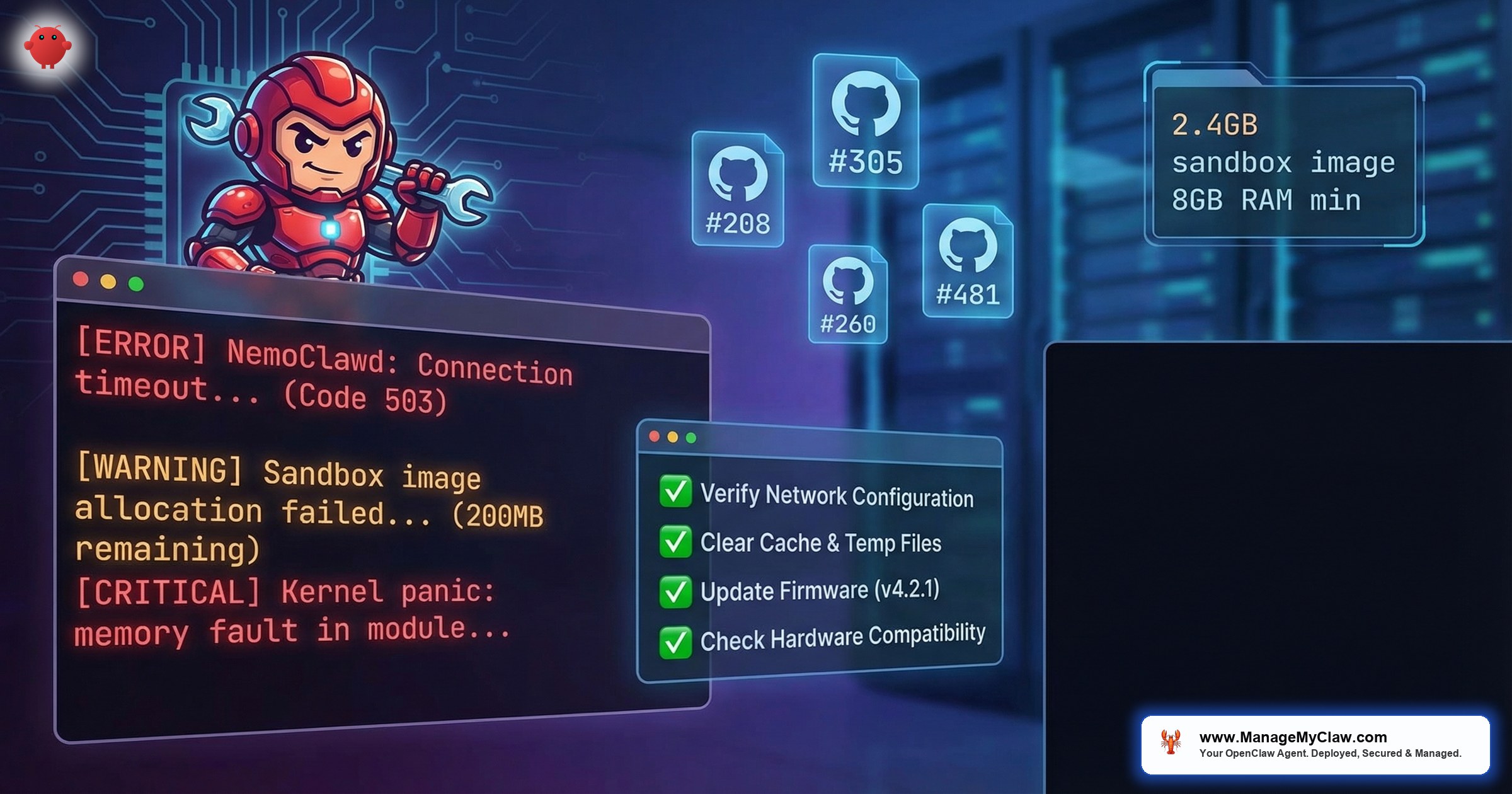
NemoClaw’s minimum system requirement is 8 GB RAM. In practice, running the gateway container, the OpenShell sandbox, the policy engine, and a single agent will consume 5-6 GB at idle. The sandbox image alone is approximately 2.4 GB compressed — combined with Docker, k3s, and OpenShell overhead, machines with less than 8 GB RAM will trigger the OOM killer during sandbox creation before any agent even starts. Add local inference via Ollama or Nemotron and memory usage climbs past 8 GB within minutes. The Linux OOM killer terminates the sandbox container first — the most memory-hungry process — which kills your running agent without warning.
# Check current swap
$ free -h | grep -i swap

# Create 8 GB swap file
$ sudo fallocate -l 8G /swapfile
$ sudo chmod 600 /swapfile
$ sudo mkswap /swapfile
$ sudo swapon /swapfile

# Persist across reboots
$ echo '/swapfile none swap sw 0 0' | sudo tee -a /etc/fstab

# Reduce swappiness — prefer RAM, use swap as safety net only
$ sudo sysctl vm.swappiness=10
$ echo 'vm.swappiness=10' | sudo tee -a /etc/sysctl.conf

# Verify
$ free -hIf your NemoClaw sandbox dies unexpectedly, check the kernel log first: dmesg | grep -i "oom\|killed". OOM kills are the number one cause of silent sandbox failures on 8 GB machines. The sandbox container does not log OOM events to NemoClaw’s application log — you must check the kernel log directly.
Two fixes that prevent OOM during sandbox creation: (1) add 8 GB swap as described below, and (2) use a pre-built sandbox image instead of building from source. The pre-built image avoids the peak memory spike during image compilation. Pull the pre-built image with nemoclaw sandbox pull --prebuilt before running nemoclaw onboard.
cgroup Memory Limits for Sandbox Isolation
Even with sufficient system RAM, the sandbox container can consume memory without bound unless you set explicit cgroup limits. A runaway agent that loads large datasets or spawns excessive child processes will exhaust available memory.
# Set sandbox memory limit to 4 GB with 512 MB swap
$ nemoclaw config set sandbox.memory.limit 4g
$ nemoclaw config set sandbox.memory.swap 512m

# Verify cgroup enforcement
$ nemoclaw sandbox inspect | grep -i memory
# memory.max: 4294967296
# memory.swap.max: 536870912Network Policy, Proxy, and Connectivity Failures
GitHub #272: Preset Binary Gaps
NemoClaw ships with policy presets in the policies/presets/ directory — curated YAML configurations for common workflows. Issue #272 documents that these presets define network destination allowlists but do not restrict which binaries can access those endpoints. Any process running inside the sandbox can reach allowed destinations, not just the intended agent binary.
# List active policy presets
$ nemoclaw policy list

# Inspect a preset for binary restrictions
$ nemoclaw policy show default-web-agent | grep -A5 "binaries"
# If "binaries:" section is missing, the preset is vulnerable

# Fix: add explicit binary allowlist to your policy
# In policies/openclaw-sandbox.yaml:
binaries:
  allow:
    - node
    - python3
  deny:
    - curl    # Prevent direct HTTP from shell
    - wget
- nc # Prevent netcat data exfiltrationWithout a binary allowlist, a prompt-injected agent can use curl or python3 to exfiltrate data to any allowed network endpoint. The policy engine sees a permitted destination and allows the request. Always add explicit binaries.allow to every production policy. See our Architecture Deep Dive for the full 4-level evaluation model.
GitHub #385: Local Inference Routing Fails Inside Sandbox
When running NemoClaw with local inference (Ollama or Nemotron), the sandbox’s network isolation prevents the agent from reaching the inference endpoint on the host. The privacy router is supposed to handle this routing, but on certain configurations — particularly WSL2 and Docker Desktop on macOS — the route from sandbox to host inference endpoint is broken.
# Check if the sandbox can reach the inference endpoint
$ nemoclaw sandbox exec -- curl -s http://inference.local:11434/api/tags
# If this returns "connection refused" or times out, routing is broken

# Workaround 1: Use host.docker.internal
$ nemoclaw config set inference.endpoint http://host.docker.internal:11434

# Workaround 2: Add explicit DNS entry inside sandbox
$ nemoclaw sandbox exec -- sh -c \
  'echo "172.17.0.1 inference.local" >> /etc/hosts'

# Workaround 3: Bind Ollama to 0.0.0.0 (not just localhost)
$ OLLAMA_HOST=0.0.0.0:11434 ollama serve
GitHub #481: Discord and Telegram Channels Broken
Agents configured to connect to Discord or Telegram channels receive 403 Forbidden responses. The HTTP CONNECT proxy that NemoClaw uses for outbound traffic does not properly handle the WebSocket upgrade required by Discord’s gateway or Telegram’s long-polling API. This affects customer support agents, notification bots, and any workflow that depends on messaging platform integration.
# Verify the 403 is from NemoClaw's proxy, not the upstream
$ nemoclaw logs --component proxy | grep -i "403\|forbidden"

# Temporary workaround: bypass proxy for messaging endpoints
# Add to your YAML policy:
network:
  proxy_bypass:
    - gateway.discord.gg
    - api.telegram.org
    - discord.com

# Note: proxy bypass reduces security — the policy engine
# cannot inspect bypassed traffic at L7. Use only when required.
$ nemoclaw policy apply --reloadGitHub #481 has been open since early March 2026 with no NVIDIA response indicating a timeline. If your deployment depends on Discord or Telegram integration, factor the proxy bypass workaround into your security assessment. The proxy bypass means NemoClaw cannot inspect or enforce policies on that traffic.
WSL2 and macOS Issues
GitHub #305: WSL2 Tracking Issue
Issue #305 is NVIDIA’s umbrella tracking issue for all WSL2-related problems. It consolidates #208 (forced GPU mode), #336 (cannot reach Windows Ollama), and several nested container networking failures. WSL2 support is not officially guaranteed — NemoClaw targets native Linux as the primary platform.
For the complete WSL2 troubleshooting workflow, see our dedicated NemoClaw on WSL2 guide.
GitHub #336: WSL2 Cannot Reach Windows Ollama
Teams running NemoClaw inside WSL2 with Ollama installed on the Windows host cannot connect to the inference endpoint. The WSL2 virtual network adapter assigns a different IP range than the Windows host, and NemoClaw’s sandbox adds another layer of network isolation on top of WSL2’s isolation.
# Get the Windows host IP from inside WSL2
$ cat /etc/resolv.conf | grep nameserver | awk '{print $2}'
# Example output: 172.28.160.1

# Configure NemoClaw to use that IP for inference
$ nemoclaw config set inference.endpoint http://172.28.160.1:11434

# On Windows side: ensure Ollama listens on all interfaces
# Set environment variable: OLLAMA_HOST=0.0.0.0:11434
# Restart Ollama service

# Also add Windows Firewall exception for port 11434
# PowerShell (run as admin):
# New-NetFirewallRule -DisplayName "Ollama WSL2" -Direction Inbound `
#   -Protocol TCP -LocalPort 11434 -Action Allow
GitHub #260: macOS Gaps Tracking Issue
Issue #260 tracks all macOS-specific gaps. The critical ones: inference.local is not added to /etc/hosts inside the sandbox on macOS, Discord and Telegram return 403 on Apple Silicon, and Docker Desktop is required (Colima and other alternatives are untested). See our NemoClaw on macOS guide for the full breakdown.
Complete GitHub Issue Reference
Every tracked issue, its status, and the workaround availability as of March 2026.
| Issue | Description | Workaround |
|---|---|---|
| #46 | Onboard fails at step 7 — cgroup delegation | Enable cgroup v2 delegation (see above) |
| #208 | WSL2 onboard forces –gpu, sandbox DOA | Set NEMOCLAW_GPU_MODE=disabled |
| #260 | macOS gaps tracking — hosts, 403s, Docker Desktop required | Partial — manual /etc/hosts, Docker Desktop only |
| #272 | Preset network policies missing binary restrictions | Add explicit binaries.allow to all presets |
| #305 | WSL2 umbrella tracking issue | See individual WSL2 workarounds |
| #306 | Rancher Desktop proxy conflicts — 403 on CONNECT | Switch to Docker Desktop or bypass proxy |
| #336 | WSL2 cannot reach Windows Ollama instance | Use WSL2 nameserver IP + Ollama on 0.0.0.0 |
| #385 | Local inference routing fails inside sandbox | host.docker.internal or manual /etc/hosts entry |
| #481 | Discord and Telegram channels return 403 | Proxy bypass (reduces L7 inspection) |
Diagnostic Commands Every Operator Needs
When something breaks, run these commands before filing a GitHub issue or contacting support. They cover 90% of diagnostic scenarios.
# 1. Overall health check
$ nemoclaw status --verbose

# 2. Container status (is everything running?)
$ docker ps --filter "name=nemoclaw" --format "{{.Names}}\t{{.Status}}"

# 3. Gateway logs (last 100 lines)
$ nemoclaw logs --component gateway --tail 100

# 4. Policy engine logs (look for DENY entries)
$ nemoclaw logs --component policy | grep -i "deny\|block\|reject"

# 5. Sandbox logs (agent execution issues)
$ nemoclaw logs --component sandbox --tail 50

# 6. OOM kill check (kernel level)
$ dmesg | grep -i "oom\|killed" | tail -20

# 7. Resource usage
$ docker stats --no-stream --filter "name=nemoclaw"

# 8. Network connectivity from sandbox
$ nemoclaw sandbox exec -- curl -s -o /dev/null -w "%{http_code}" https://api.openai.com

# 9. Policy validation (syntax check)
$ nemoclaw policy validate policies/openclaw-sandbox.yaml

# 10. Full diagnostic bundle for support
$ nemoclaw diagnostics export --output nemoclaw-diag-$(date +%Y%m%d).tar.gzOur Managed Care tier includes 24/7 monitoring with automated alerting for OOM kills, policy violations, sandbox crashes, and connectivity failures. When an issue hits your deployment, our on-call engineers have already seen the diagnostic bundle and started triage. You get a Slack notification with the root cause and ETA — not a link to a GitHub issue.
Frequently Asked Questions
Is NemoClaw stable enough for production use?
NemoClaw is alpha software as of March 2026. NVIDIA has been transparent about this. The sandbox, policy engine, and privacy router all work, but they have documented issues that require manual workarounds. Production deployments should budget engineering time for troubleshooting and maintain fallback procedures for sandbox failures. Organizations that accept the alpha status and plan for it are deploying successfully. Those expecting GA-level stability will be frustrated.
How much RAM does NemoClaw actually need?
The documented minimum is 8 GB. In practice, 16 GB is the comfortable floor for running the gateway, sandbox, and a single agent without local inference. If you add Ollama with a 7B parameter model, plan for 24 GB. For production with multiple concurrent agents, 32 GB with 8 GB swap is our recommendation based on deployments across our client base.
Should I use Docker Desktop or Rancher Desktop?
Docker Desktop. NemoClaw is tested against Docker Desktop on macOS and Windows. Rancher Desktop introduces proxy conflicts (GitHub #306) and uses a different container runtime configuration. If your organization requires Rancher Desktop for licensing reasons, expect to spend additional time configuring proxy bypass rules and testing connectivity.
What should I do when nemoclaw status shows “unhealthy”?
Run the diagnostic commands in the toolkit section above, in order. The most common causes are: port conflicts (another service on 8080/8443/6443), Docker socket permissions, OOM kills (check dmesg), and cgroup delegation failures. If nemoclaw logs --component gateway shows nothing useful, the issue is at the infrastructure level, not the application level.