“I spent two days getting NemoClaw running in WSL2. The onboard wizard forces GPU mode, the sandbox can’t reach Ollama on Windows, and k3s inside the gateway container doesn’t know it’s inside WSL2. Workarounds exist, but you need all of them.”
— r/vibecoding, March 2026
NemoClaw is NVIDIA’s enterprise security wrapper for OpenClaw — the open-source AI agent framework that combines kernel-level sandboxing (OpenShell), a YAML policy engine for per-action authorization, and a privacy router for local inference routing. NVIDIA launched NemoClaw at GTC 2026 as an alpha release targeting native Linux as the primary deployment platform. WSL2 is not an officially supported target, and the gap between “it runs on Linux” and “it runs on Linux inside Windows” creates a specific set of failures that require manual intervention.
This guide documents every WSL2-specific issue, its root cause, and the workaround we have tested on production Windows workstations. If you are a developer running NemoClaw on a Windows machine for local development or evaluation, this is the guide that will save you the two-day setup struggle described on r/vibecoding and r/LocalLLaMA.
Before you begin, read our NemoClaw Implementation Guide for the general setup process. This post assumes you understand the basic NemoClaw architecture. If an issue listed here also appears in our Troubleshooting Guide, we link to the relevant section rather than duplicating content.
WSL2 Environment Requirements
NemoClaw on WSL2 requires a specific environment configuration. Missing any of these prerequisites will cause failures that are difficult to diagnose because error messages reference Linux-native concepts that behave differently under WSL2.
WSL2 Prerequisites Checklist
- Windows 11 22H2+ or Windows 10 with WSL2 kernel 5.15+ (run
wsl --versionto verify) - WSL2 distribution: Ubuntu 22.04 LTS or later (cgroup v2 enabled by default)
- Docker Desktop for Windows with WSL2 backend enabled (not Hyper-V backend)
- 16 GB RAM minimum — WSL2 and Docker Desktop each reserve memory; 8 GB is insufficient
- .wslconfig file configured with adequate memory and swap (see below)
- systemd enabled in WSL2 (required for cgroup delegation)
# Create or edit: C:\Users\YourName\.wslconfig
[wsl2]
memory=12GB
swap=8GB
processors=4
localhostForwarding=true

# Enable systemd (required for cgroup delegation)
# In WSL2, run: sudo tee /etc/wsl.conf
[boot]
systemd=true# Enable systemd in WSL2 (if not already)
$ sudo tee /etc/wsl.conf <<'EOF'
[boot]
systemd=true
EOF
# Restart WSL2 from PowerShell
# PS C:\> wsl --shutdown
# Then reopen your WSL2 terminal
# Verify systemd is running
$ systemctl --version
$ ps -p 1 -o comm=
# Should show "systemd", not "init"GitHub #208: Onboard Forces GPU Mode
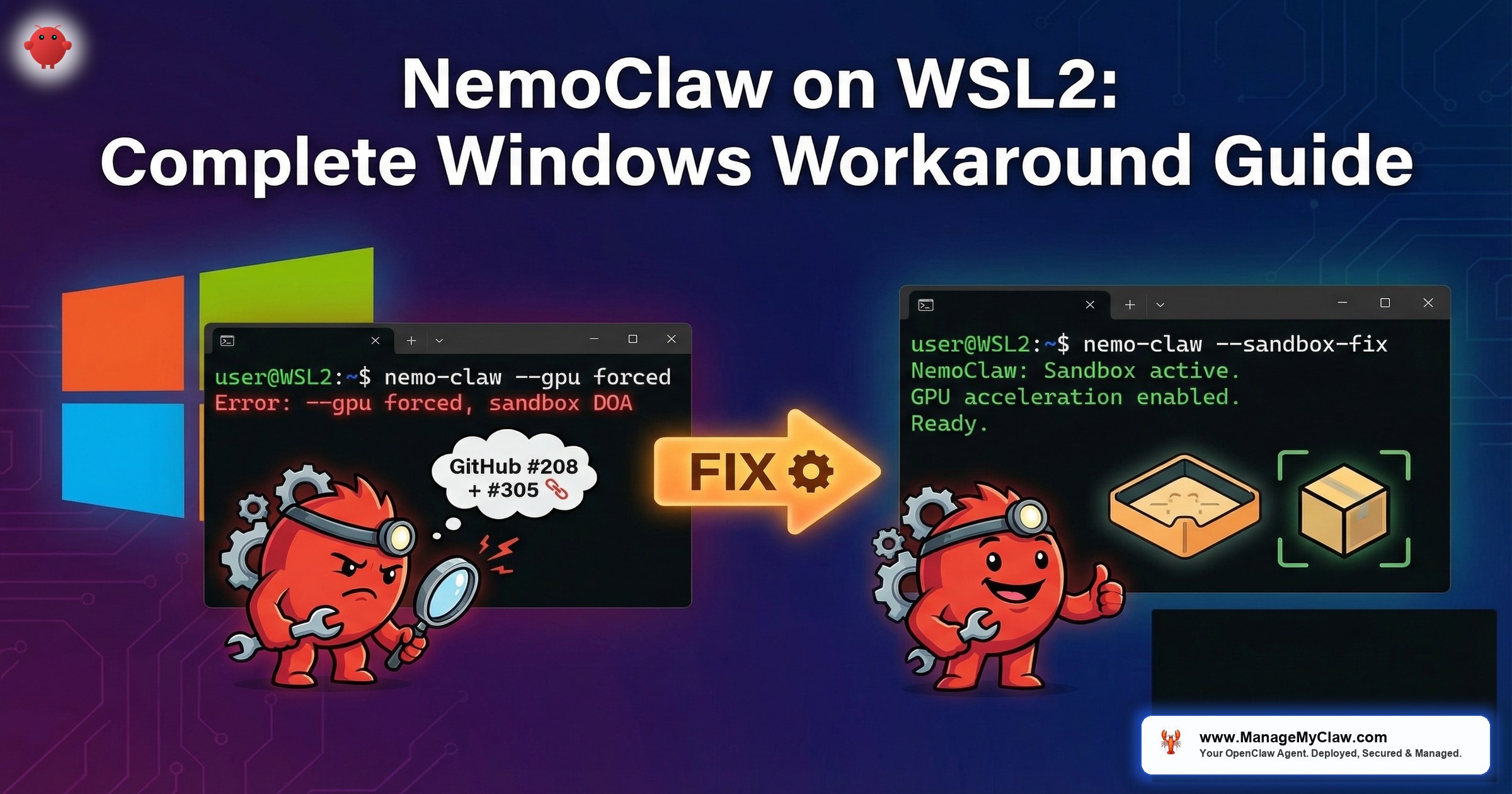
The NemoClaw onboarding wizard detects NVIDIA GPU support through WSL2’s GPU passthrough layer and automatically enables GPU mode. Specifically, the onboard process runs nvidia-smi inside WSL2, sees a valid GPU, and forces --gpu mode. Critically, no --no-gpu flag exists in the current alpha build (GitHub #208). GPU passthrough in WSL2 does not work the same way as native Linux GPU access. The k3s cluster inside the gateway container cannot access the GPU through WSL2’s virtualization layer, causing the sandbox initialization to fail completely.
1. nemoclaw onboard runs nvidia-smi inside WSL2.
2. WSL2’s GPU passthrough reports a valid NVIDIA GPU.
3. Onboarding enables GPU mode, configuring k3s with NVIDIA device plugin.
4. The gateway container starts k3s with GPU scheduling enabled.
5. k3s inside the container cannot access the GPU through the nested virtualization layer (WSL2 VM → Docker container → k3s pod).
6. Sandbox initialization fails. NemoClaw is dead on arrival.
# Method 1: Environment variable override
$ export NEMOCLAW_GPU_MODE=disabled
$ nemoclaw onboard

# Method 2: Mask the GPU from NemoClaw's detection
$ export NVIDIA_VISIBLE_DEVICES=""
$ export CUDA_VISIBLE_DEVICES=""
$ nemoclaw onboard

# Method 3: Start gateway WITHOUT --gpu, then create provider
# This workaround bypasses the onboard wizard entirely
$ openshell gateway start --name nemoclaw
# Create the provider BEFORE sandbox — avoids GPU auto-detection

# After onboarding, verify CPU-only mode
$ nemoclaw status | grep -i gpu
# GPU: disabled (CPU-only mode)Disabling GPU mode for NemoClaw does not disable GPU access for your LLM inference. Ollama running on the Windows host (or directly in WSL2) can still use the GPU. NemoClaw’s sandbox simply does not attempt to pass the GPU into the nested k3s environment. Local inference via Ollama on the host with CPU-only NemoClaw is the recommended WSL2 configuration.
The Double-NAT Problem
WSL2 runs as a lightweight VM with its own virtual network adapter. Docker Desktop on WSL2 adds another network layer. NemoClaw’s gateway container adds a third. The result is triple-NAT: your agent inside the NemoClaw sandbox is three network hops away from the Windows host. This breaks several assumptions that NemoClaw makes about network connectivity.
| Network Layer | IP Range | What Lives Here |
|---|---|---|
| Windows host | 192.168.x.x (your LAN) | Ollama, browsers, development tools |
| WSL2 VM | 172.x.x.x (dynamic) | Linux userspace, Docker daemon |
| Docker bridge | 172.17.0.x | NemoClaw gateway container |
| NemoClaw sandbox | 10.42.x.x (k3s pod network) | Your agent, sandboxed |
When your sandboxed agent tries to reach localhost:11434 for Ollama inference, it hits the k3s pod’s localhost — which has nothing listening on 11434. The request never leaves the sandbox network. This is the root cause of GitHub #336 and #385.
# From WSL2: what is the Windows host IP?
$ WIN_HOST=$(cat /etc/resolv.conf | grep nameserver | awk '{print $2}')
$ echo "Windows host: $WIN_HOST"

# From WSL2: can you reach Ollama on Windows?
$ curl -s http://$WIN_HOST:11434/api/tags
# Should return JSON with model list

# From NemoClaw sandbox: can the agent reach anything?
$ nemoclaw sandbox exec -- curl -s http://host.docker.internal:11434/api/tags
# If this fails, the sandbox-to-host route is broken

# Check Docker's host.docker.internal resolution
$ nemoclaw sandbox exec -- getent hosts host.docker.internal
# Should resolve to the Docker host IPGitHub #336: Cannot Reach Windows Ollama
This is the most common WSL2 issue reported on r/LocalLLaMA: NemoClaw’s sandbox cannot connect to Ollama running on the Windows host. The agent times out waiting for inference responses. Logs show connection refused or network unreachable errors. The root cause is the triple-NAT problem described above, combined with Ollama’s default binding to 127.0.0.1 (localhost only).
Step-by-Step Fix
-
1
Bind Ollama to all interfaces on Windows. Open System Environment Variables and add
OLLAMA_HOST=0.0.0.0:11434. Restart the Ollama service. Alternatively, if running Ollama in WSL2 directly:OLLAMA_HOST=0.0.0.0:11434 ollama serve. -
2
Add Windows Firewall exception. Open PowerShell as administrator:
New-NetFirewallRule -DisplayName "Ollama WSL2" -Direction Inbound -Protocol TCP -LocalPort 11434 -Action Allow. This allows WSL2 to reach the Ollama port through the Windows firewall. -
3
Get the Windows host IP from inside WSL2. Run
cat /etc/resolv.conf | grep nameserver | awk '{print $2}'. This IP changes on each WSL2 restart, so this step may need to be repeated. -
4
Configure NemoClaw to use that IP. Run
nemoclaw config set inference.endpoint http://<WINDOWS_IP>:11434. Replace<WINDOWS_IP>with the IP from step 3. -
5
Add the IP to your YAML policy’s network allowlist. The policy engine must permit outbound connections to the Ollama endpoint. Add the Windows host IP and port 11434 to your
network.destinationslist.
#!/bin/bash
# wsl2-ollama-fix.sh — Run inside WSL2 after each restart

# Get Windows host IP
WIN_IP=$(cat /etc/resolv.conf | grep nameserver | awk '{print $2}')
echo "Windows host IP: $WIN_IP"

# Test connectivity to Ollama
if curl -s --connect-timeout 3 http://$WIN_IP:11434/api/tags > /dev/null 2>&1; then
    echo "Ollama reachable at $WIN_IP:11434"
else
    echo "ERROR: Cannot reach Ollama at $WIN_IP:11434"
    echo "Check: 1) Ollama running on Windows with OLLAMA_HOST=0.0.0.0"
    echo "       2) Windows Firewall allows port 11434"
    exit 1
fi

# Configure NemoClaw
nemoclaw config set inference.endpoint http://$WIN_IP:11434
echo "NemoClaw configured for Ollama at $WIN_IP:11434"

# Restart NemoClaw to apply
nemoclaw restart
echo "NemoClaw restarted. Verifying..."

# Verify from sandbox
sleep 5
nemoclaw sandbox exec -- curl -s http://$WIN_IP:11434/api/tags
echo "Done."The WSL2 nameserver IP changes on every WSL2 restart (and sometimes on Windows sleep/wake cycles). You must re-run the configuration script after each restart. For a permanent solution, consider running Ollama inside WSL2 directly instead of on the Windows host — this eliminates the cross-VM networking issue entirely, at the cost of managing Ollama within the Linux environment.
k3s Inside WSL2: Nested Container Limitations
NemoClaw uses k3s (lightweight Kubernetes) inside the gateway container to manage sandbox pods. On native Linux, k3s starts cleanly and manages pod networking through the host kernel’s network namespaces. On WSL2, k3s runs inside a Docker container that runs inside a WSL2 VM that runs inside Windows. This nesting creates issues with storage drivers, network overlays, and container runtime socket access. GitHub #305 tracks these nested container networking issues — k3s inside OpenShell cannot reliably reach container registries from within WSL2, causing image pull failures during sandbox creation.
Storage Driver Conflicts
# Check if k3s is running inside the gateway
$ docker exec nemoclaw-gateway kubectl get nodes
# If this returns "connection refused", k3s failed to start

# Check k3s logs for storage driver errors
$ docker exec nemoclaw-gateway journalctl -u k3s | grep -i "overlay\|storage\|mount"

# Common error: "overlay mount failed" — WSL2's filesystem
# does not always support overlay2 in nested containers

# Fix: switch k3s to vfs storage driver
$ nemoclaw config set sandbox.storage_driver vfs
$ nemoclaw restart
DNS Resolution Inside Sandbox
WSL2 uses a custom DNS resolver that maps to the Windows host’s DNS settings. When NemoClaw’s sandbox creates its own network namespace, DNS resolution can break because the sandbox’s /etc/resolv.conf points to a nameserver that is unreachable from the sandbox network.
# Test DNS from inside the sandbox
$ nemoclaw sandbox exec -- nslookup api.openai.com
# If this fails, DNS is broken inside the sandbox

# Fix: configure sandbox to use public DNS
$ nemoclaw config set sandbox.dns "8.8.8.8,8.8.4.4"
$ nemoclaw restart

# Verify DNS works
$ nemoclaw sandbox exec -- nslookup api.openai.com
# Should resolve successfullyComplete WSL2 Workaround Reference
| Problem | Root Cause | Workaround | Permanent? |
|---|---|---|---|
| Onboard forces GPU mode | WSL2 GPU passthrough detected but unusable in nested containers | NEMOCLAW_GPU_MODE=disabled |
Yes (one-time) |
| Cannot reach Ollama on Windows | Triple-NAT, Ollama bound to 127.0.0.1 | Bind to 0.0.0.0, configure NemoClaw with host IP | No (IP changes) |
| Sandbox DNS failures | WSL2 resolver unreachable from sandbox namespace | Set public DNS (8.8.8.8) | Yes |
| k3s overlay mount failure | WSL2 filesystem does not support overlay2 in nested containers | Switch to vfs storage driver | Yes |
| cgroup delegation missing | systemd not enabled by default in older WSL2 builds | Enable systemd in /etc/wsl.conf | Yes |
| Slow filesystem performance | Windows filesystem mounted via 9P protocol in WSL2 | Store NemoClaw data on ext4 partition (~/), not /mnt/c/ | Yes |
No. WSL2 is acceptable for development and evaluation. For production deployments, use native Linux on bare metal or a cloud VM. The triple-NAT problem, dynamic IP assignments, and nested container limitations introduce failure modes that do not exist on native Linux. If your organization is evaluating NemoClaw and your developers use Windows, WSL2 is the path of least resistance for hands-on testing. For anything that touches real data or faces customers, deploy on a Linux server.
r/vibecoding and r/LocalLLaMA Threads
The NemoClaw WSL2 experience has generated significant discussion in developer communities. The recurring themes match the issues documented above, with community members contributing additional workarounds and edge cases.
“Got NemoClaw running on WSL2 after disabling GPU detection, binding Ollama to 0.0.0.0, and adding a manual firewall rule. Works for eval, but I wouldn’t trust this networking stack for production.”
— r/LocalLLaMA, March 2026“The two-day struggle is real. NemoClaw on native Ubuntu took 20 minutes. Same machine, same hardware, WSL2 took the entire weekend. The nested networking is the killer.”
— r/vibecoding, March 2026Community consensus aligns with our recommendation: WSL2 for development and evaluation, native Linux for production. The workarounds in this guide reduce the setup time from “two days” to approximately one hour, but the underlying architecture limitations remain.
Experimental: GPU Passthrough on WSL2
For teams that need GPU passthrough on WSL2, the thenewguardai/tng-nemoclaw-quickstart repository provides an experimental wsl2-gpu-deploy.sh script that patches the CDI (Container Device Interface) pipeline for GPU passthrough within the NemoClaw sandbox. The repo’s tagline: “Ship your first secure AI agent in under 30 minutes.” The script is community-maintained and not endorsed by NVIDIA, but it addresses the GPU passthrough gap that the official onboarding wizard cannot handle on WSL2.
The wsl2-gpu-deploy.sh script modifies the CDI pipeline configuration and has only been tested on a limited set of hardware. Use it for development and evaluation only. If it breaks your WSL2 Docker configuration, the fix is to reinstall Docker Desktop with WSL2 backend. Back up your Docker volumes before running the script.
Frequently Asked Questions
Can I run NemoClaw on WSL1 instead of WSL2?
No. WSL1 does not provide a real Linux kernel — it translates Linux syscalls to Windows NT calls. NemoClaw requires kernel features (Landlock, seccomp, namespaces, cgroups v2) that only exist in a real Linux kernel. WSL2 runs an actual Linux kernel in a lightweight VM, which is why it works at all. WSL1 will fail immediately at the onboarding stage.
Will NVIDIA officially support WSL2?
GitHub #305 is the tracking issue, and NVIDIA has not committed to official WSL2 support. The alpha release targets native Linux. Community workarounds exist (this guide documents them), but you should not expect NVIDIA engineering resources dedicated to WSL2-specific issues during the alpha phase. Plan your production deployment on native Linux regardless.
Should I run Ollama on Windows or inside WSL2?
Running Ollama inside WSL2 eliminates the cross-VM networking problem entirely. The tradeoff: GPU access from within WSL2 may have slightly higher overhead than native Windows Ollama, and you manage Ollama within the Linux environment rather than as a Windows service. For NemoClaw evaluation, running Ollama inside WSL2 is simpler. For production inference, run Ollama on a dedicated Linux server with native GPU access.
How much RAM do I need for NemoClaw on WSL2?
16 GB minimum. WSL2 itself consumes 2-4 GB, Docker Desktop adds another 2 GB of overhead, and NemoClaw requires 5-6 GB for the gateway, sandbox, and policy engine. With Ollama running a 7B parameter model, total memory usage reaches 12-14 GB. Set your .wslconfig to allocate at least 12 GB to WSL2 and configure 8 GB of swap as a safety net. See our Troubleshooting Guide for the swap configuration.