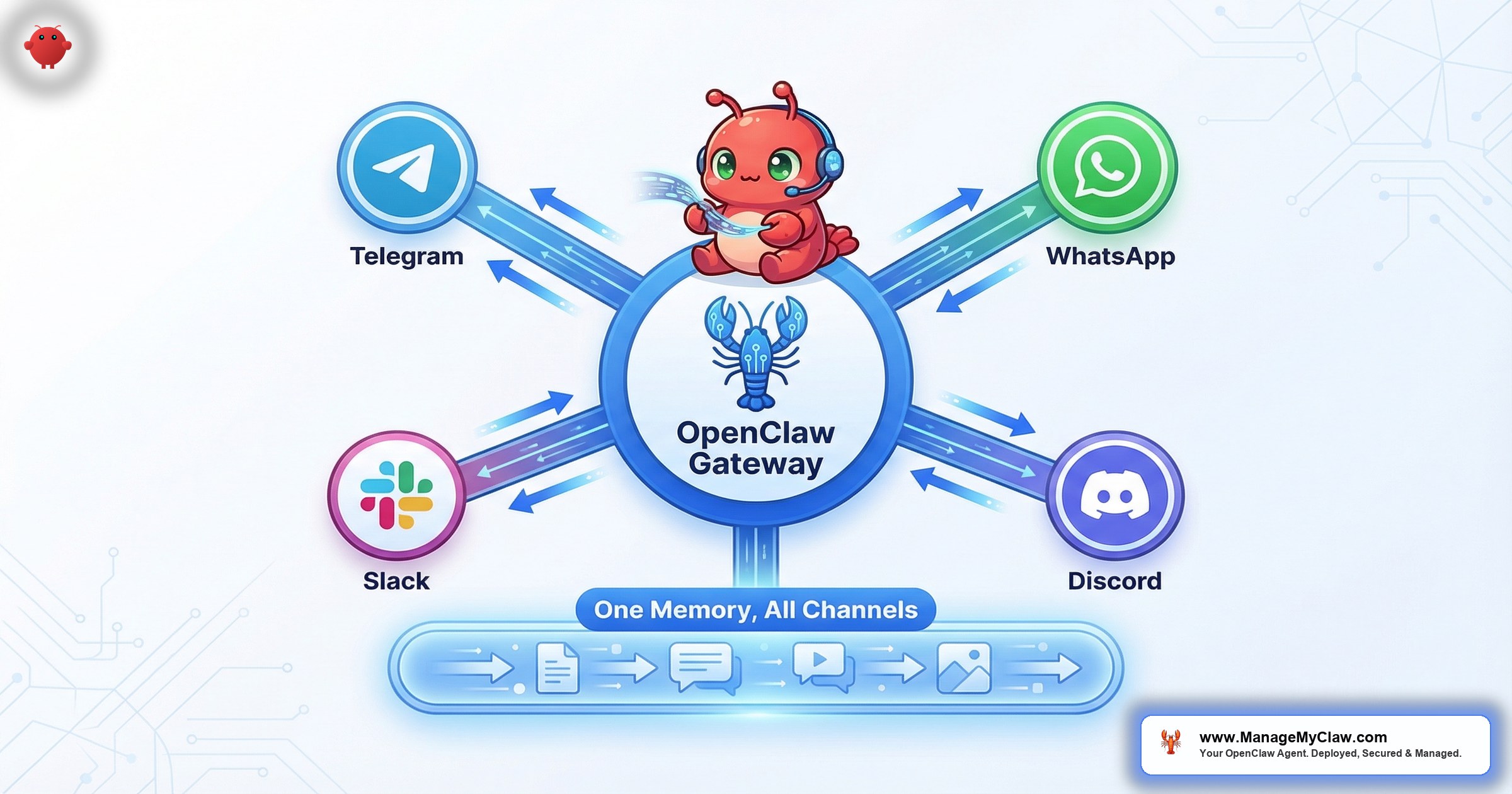
OpenClaw supports 12 messaging channels simultaneously. 1 Gateway process. 1 shared memory. Every platform — Telegram, WhatsApp, Discord, Slack — routes into the same session store.
That sounds clean on paper. In practice, most people get 1 channel working, try to add a second, and hit “channel config schema unavailable” or “plugin not available” before the bot ever responds. On r/openclaw, a thread titled “Discord (and other channels) show ‘plugin not available’ after fresh install” surfaced the same pattern — the Gateway loaded, the channel plugin registered, and nothing happened. The fix was a config key most tutorials skip entirely.
Think of OpenClaw’s Gateway like a phone switchboard. Telegram, WhatsApp, Discord, and Slack are different phone lines. The switchboard connects them all to the same operator. But if you wire one line wrong, the operator never picks up — and the error message just says “line unavailable.”
This is the complete openclaw telegram whatsapp discord slack setup guide — how each channel connects, what the identity mapping looks like across platforms, and the 3 configuration mistakes that cause 90% of multi-channel failures.
How the Gateway Architecture Works
Before touching any channel config, you need to understand the architecture. OpenClaw doesn’t run 4 separate bots for 4 platforms. It runs 1 Gateway process that receives messages from every connected channel and routes them into the same session store. Your agent sees a unified conversation thread regardless of which platform you messaged from.
Each channel is a plugin — a small adapter that translates platform-specific message formats (Telegram’s Bot API, Discord’s WebSocket events, Slack’s Socket Mode) into OpenClaw’s internal message schema. The agent doesn’t know or care whether you sent a command from Telegram at 8 AM and followed up on Discord at noon. It’s the same conversation, the same memory, the same context.
On r/AISEOInsider, a post titled “The Discord Trick That Turns OpenClaw Into a 24/7 Multi-Agent Factory” described running multiple agents from separate Discord channels, each with its own system prompt and workflow bindings. The key insight: the Gateway doesn’t just connect platforms to agents. It connects specific channels within platforms to specific agent configurations. 1 Discord server, 3 channels, 3 different agents — each with its own memory and permissions.
Why this matters: If you’re planning to use multiple channels, you’re not installing 4 bots and hoping they stay in sync. You’re configuring 4 adapters that feed into 1 brain. That’s simpler than it sounds — but the configuration has to be right, because 1 bad adapter takes down the entire Gateway process.
Telegram: The 5-Minute Channel
Telegram is the easiest channel to set up. It’s where most people start, and for good reason — the Bot API is well-documented, the token generation takes 30 seconds, and the grammY TypeScript framework that OpenClaw uses under the hood handles reconnections, rate limiting, and message queuing without intervention.
The setup sequence:
- Create a bot token. Message @BotFather on Telegram, run
/newbot, choose a name and username, copy the token. This takes under 60 seconds. - Add the token to your OpenClaw channel config. The token goes in your Gateway configuration file under the Telegram adapter section. Never paste it into a conversation prompt or an environment variable that gets logged.
- Set your Telegram user ID as an authorized user. Without this, anyone who finds your bot’s username can send it commands. Your Telegram user ID (a numeric ID, not your username) goes into the authorized_users array.
- Restart the Gateway. The Telegram adapter registers, connects to Telegram’s API, and starts polling for messages.
On r/AI_Agents, a thread titled “you can build your own OpenClaw in 5 minutes and run it from Telegram” captured the simplicity. And they’re not wrong. The Telegram adapter reconnects automatically on network drops, handles retries gracefully, and doesn’t require OAuth app registration.
The gotcha: Telegram’s Bot API has a 4,096-character message limit and a 50 MB file limit. For workflows that produce long reports, configure the agent to send a summary with a link to the full output rather than dumping everything into chat.
Why this matters: Telegram is the proving ground. If your Gateway, agent, and session store are working correctly, Telegram will confirm it in 5 minutes. Start here before adding anything else.
WhatsApp: The QR Code and the Baileys Question
WhatsApp is the most requested channel and the most fragile to configure. OpenClaw connects to WhatsApp via the Baileys TypeScript library, which implements the WhatsApp Web WebSocket protocol. Translation: it works by acting like a browser tab that’s logged into WhatsApp Web. You authenticate by scanning a QR code from your phone, just like you would when opening WhatsApp Web on a computer.
The setup sequence:
- Enable the WhatsApp adapter in your Gateway configuration and restart the Gateway process.
- Watch the Gateway logs for the QR code. Baileys generates a QR code in the terminal. Open WhatsApp on your phone, go to Linked Devices, and scan it. This pairs your phone’s WhatsApp session with the Gateway.
- Test with a message. Send a message to your own number from a different WhatsApp account (or have someone message you). The agent should receive and respond.
On r/OpenClawInstall, a post titled “How to connect OpenClaw to WhatsApp so your agents send reports, accept commands” walked through the full Baileys integration. The community consensus: it works once paired, but the session can break if your phone loses internet for an extended period or if WhatsApp pushes a protocol update that Baileys hasn’t adapted to yet. It’s like running a browser headlessly — works perfectly until the website changes its login flow.
Critical detail: The WhatsApp adapter uses your personal phone number. Every message the agent sends comes from your number. If you’re using WhatsApp for business communication, this is either exactly what you want or a deal-breaker. The default should be read + notify only, with auto-respond gated behind an explicit allowlist.
Why this matters: WhatsApp is the channel your clients already use. But it’s also where a misconfigured auto-respond can send a garbled AI message to your most important client. Start in monitor mode. Promote to respond after 2 weeks of verified behavior.
Discord: The Multi-Agent Powerhouse
Discord’s setup is similar to Telegram in simplicity — create a bot, grab a token, add it to your server — but it offers something the other channels don’t: native multi-channel organization within a single server. That’s what makes it the preferred platform for teams running more than 1 agent.
The setup sequence:
- Create a Discord application in the Discord Developer Portal. Add a bot to the application and copy the bot token.
- Generate an invite link with the permissions your agent needs: Send Messages, Read Message History, and Embed Links at minimum. Add the bot to your server.
- Add the token to your Gateway config under the Discord adapter section. Specify which channel IDs the bot should listen to — don’t let it respond in every channel.
- Restart the Gateway. The Discord adapter connects via WebSocket and starts receiving events.
On r/openclaw, a thread titled “Discord vs Slack for different convos with OpenClaw” captured the trade-off. Discord for personal use and small teams — zero-cost server creation, channel flexibility. Slack for companies already living in Slack that need audit trails and compliance controls.
The multi-agent pattern: Create separate Discord channels for separate workflows — #email-triage, #daily-briefing, #kpi-reports. Bind each channel ID in the Gateway config to a different agent profile with its own system prompt, permissions, and memory namespace. 1 Discord server becomes a control panel for your entire agent fleet.
Why this matters: If you’re running 2 or more agents (Pro and Business tier deployments support up to 2 agents), Discord gives you organizational structure that Telegram and WhatsApp can’t match. Each agent gets its own channel, its own conversation history, and its own permissions scope.
Slack: The Enterprise Path
Slack is the most involved setup of the 4, but it’s the right choice if your team already runs on Slack and your IT policy requires OAuth app approval. OpenClaw connects via Slack Socket Mode, which means the connection is outbound from your server — no public webhook URL required, no inbound firewall rules to configure.
The setup sequence:
- Create a Slack app at api.slack.com/apps. Choose “From scratch,” not from a manifest.
- Enable Socket Mode in the app settings. This generates an App-Level Token that the Gateway uses to establish the outbound WebSocket connection.
- Configure OAuth scopes. At minimum:
chat:write,channels:history,channels:read,im:history,im:read,im:write. Install the app to your workspace — this generates the Bot User OAuth Token. - Subscribe to events:
message.channelsandmessage.imat minimum. This tells Slack which events to forward to your Gateway. - Add both tokens (App-Level Token and Bot User OAuth Token) to your Gateway config under the Slack adapter section.
- Restart the Gateway and invite the bot to the channels where it should listen.
On r/ClaudeAI, a post titled “I couldn’t afford the crazy Openclaw API fees, so I built a remote control for my Claude Code. It works from Slack or Discord” captured the demand signal. People want to interact with their AI agents from the tools they already live in. They don’t want another dashboard. They want a Slack channel.
Enterprise consideration: Slack’s OAuth app approval in larger organizations can take days or weeks. Start the approval process before you touch the Gateway config. The technical setup takes 15 minutes. The organizational approval can take 15 days.
Why this matters: Socket Mode means your OpenClaw server never needs to expose a public endpoint for Slack. The connection is outbound only. For security-conscious deployments where the VPS is locked behind Tailscale and a firewall, this is the cleanest integration path — no firewall holes required.
Identity Mapping: 4 Platforms, 1 You
Here’s the problem nobody mentions in the “just connect 4 channels” guides: your Telegram user ID, your WhatsApp phone number, your Discord user ID, and your Slack member ID are 4 completely different identifiers. If you message your agent from Telegram in the morning and continue the conversation from Discord in the afternoon, the Gateway sees 2 different users — unless you’ve configured identity bindings.
Identity bindings map platform-specific identifiers to a single user profile in OpenClaw’s session store. The configuration looks like this:
| Platform | Identifier Type | Where to Find It |
|---|---|---|
| Telegram | Numeric user ID | Message @userinfobot or check Gateway logs |
| Phone number (E.164 format) | Your number with country code: +1234567890 | |
| Discord | Numeric user ID (snowflake) | Enable Developer Mode, right-click your username |
| Slack | Member ID (e.g., U05ABC123) | Click your profile in Slack > three dots > Copy member ID |
All 4 identifiers map to a single user entry in the Gateway config. Ask for your morning briefing from Telegram, then follow up about your 2 PM meeting from Slack — the agent has full context from both.
On r/openclaw, a thread titled “How do i set it up for multiple telegram users?” revealed the inverse problem: teams sharing 1 agent need separate identity bindings per person. Without this, the agent confuses your calendar with your cofounder’s.
Why this matters: Identity mapping is the difference between “I have 4 channels” and “I have 1 agent I can reach from anywhere.” Skip this step and you’ll end up with fragmented conversations, duplicate memory entries, and an agent that doesn’t remember what you told it 3 hours ago on a different platform.
The 3 Configuration Mistakes That Break Multi-Channel
These come from our deployments and from the recurring error threads on r/openclaw. All 3 are fixable in under 5 minutes once you know what to look for.
1. “Channel config schema unavailable”
The most common error, reported across r/openclaw in multiple threads. This happens when the channel adapter plugin is referenced in the Gateway config but the plugin module hasn’t been installed or registered. The fix: verify the adapter package is in your node_modules and that the Gateway config references the correct module path. A version mismatch between the Gateway and adapter packages causes the same error — lock your versions.
2. “Plugin not available” after a fresh install
On r/openclaw, the thread “Discord (and other channels) show ‘plugin not available’ after fresh install” documented this one thoroughly. The Gateway loads plugins in a specific order. If a channel adapter depends on a shared module (like the session store) and that module hasn’t loaded yet, the adapter fails silently with “plugin not available.” The fix is sequencing: ensure the core Gateway plugins (session store, memory, auth) are listed before channel adapters in your config file. Load order matters.
3. Missing identity bindings for team deployments
When multiple people message the same agent from the same platform without individual identity bindings, the agent treats all messages as coming from 1 user. Your team lead asks for the sales report. Your operations manager asks for the inventory update. The agent delivers the inventory update with the sales report context blended in. Configure 1 identity binding per person, per platform. For a 5-person team across 2 platforms, that’s 10 bindings. Takes 5 minutes. Prevents weeks of confusion.
Why this matters: These aren’t edge cases. They’re the 3 errors that show up in nearly every multi-channel deployment. Knowing them before you start saves the 2–4 hours of troubleshooting most people spend discovering them. For the full infrastructure hardening checklist — firewalls, Docker sandboxing, token security — see the OpenClaw security hardening guide.
Channel Comparison: Which One for What
Not every channel is right for every workflow. Here’s how they break down:
| Channel | Setup Time | Best For | Watch Out For |
|---|---|---|---|
| Telegram | 5 minutes | Solo founders, quick commands, morning briefings | 4,096 char message limit, 50 MB file limit |
| 10–15 minutes | Client-facing reports, team where everyone uses WhatsApp | Session fragility, uses your personal number | |
| Discord | 10 minutes | Multi-agent setups, team dashboards, channel-per-workflow | Requires server admin access to add bots |
| Slack | 15–30 minutes | Enterprise teams, compliance requirements, existing Slack orgs | OAuth app approval delays, most setup steps |
The Pro tier includes multi-channel delivery for 2 channels. The Business tier supports up to 4. If you need all 4 platforms active simultaneously, that’s a Business-tier deployment. See the pricing breakdown for exactly what’s included at each tier.
The Bottom Line
Multi-channel OpenClaw isn’t about being on every platform. It’s about reaching your agent from wherever you are without losing context, memory, or conversation history. 1 Gateway process receives from all channels. 1 session store holds the state. Identity bindings connect your Telegram messages, WhatsApp replies, Discord commands, and Slack threads into a single conversation with a single agent that remembers everything.
Start with Telegram. Add WhatsApp or Discord based on where your team and clients already communicate. Add Slack when enterprise requirements demand it. Configure identity bindings before you add the second channel, not after you’ve spent a week wondering why the agent has amnesia every time you switch platforms.
And if “channel config schema unavailable” shows up, you now know exactly where to look.
Frequently Asked Questions
Can I use all 4 channels at the same time?
Yes. OpenClaw supports up to 12 channels simultaneously through the Gateway. Each channel runs as an independent adapter plugin feeding into the same session store. The practical limit isn’t the software — it’s the number of channels included in your deployment tier. Pro includes 2 channels. Business includes 4. If you need more, it’s a configuration change, not a rebuild.
What happens if WhatsApp’s Baileys library breaks after a protocol update?
Your other channels keep working. The Gateway isolates adapter failures — if the WhatsApp adapter crashes, Telegram, Discord, and Slack continue receiving and sending messages. The Baileys community is active and typically ships fixes within 48–72 hours of a WhatsApp protocol change. On ManageMyClaw managed deployments, we monitor adapter health and apply Baileys patches as soon as they’re verified stable.
Do I need a separate bot token for each channel?
Yes. Each platform has its own authentication: Telegram needs a Bot API token from @BotFather, Discord needs a bot token from the Developer Portal, Slack needs an App-Level Token plus a Bot User OAuth Token, and WhatsApp needs a QR-code pairing session. These are all separate credentials stored in separate sections of your Gateway config. None of them share authentication with each other.
Can different team members use different channels to talk to the same agent?
Yes, with identity bindings configured per person. Team member A can use Telegram. Team member B can use Slack. Each person gets their own identity binding, their own memory namespace, and their own conversation history. The agent knows who’s asking and responds with the right context. Without individual bindings, the agent merges everyone’s conversations into 1 thread — and gives your marketing lead the engineering report.
Is there a security risk in connecting multiple channels?
Each channel adds an authentication surface — a bot token, a QR session, an OAuth token — that needs to be secured. All tokens should be stored in your Gateway config file with restricted file permissions, never in environment variables that get logged or conversation prompts that get compacted. The Gateway itself should be bound to localhost behind Tailscale, so channel adapters connect outbound only. No additional inbound firewall rules needed if you’re using Telegram (long polling), Discord (WebSocket), and Slack (Socket Mode). WhatsApp via Baileys is also outbound. The security architecture described in the security hardening guide applies to multi-channel deployments without modification.
Which channel should I set up first?
Telegram. It has the simplest setup (1 token, 1 user ID, no OAuth), the most forgiving error handling (auto-reconnects, handles network drops gracefully), and the fastest feedback loop. If your agent works on Telegram, your Gateway and session store are healthy. Then add channels based on where your communication actually happens — WhatsApp for client-facing, Discord for multi-agent team setups, Slack for enterprise environments.
Want Telegram, WhatsApp, Discord, or Slack connected to your OpenClaw agent — with identity bindings, security hardening, and the Gateway configured correctly — without debugging adapter plugins yourself?
ManageMyClaw handles multi-channel deployment as part of every Pro and Business setup. Channels configured, identity mapped, tokens secured, Gateway tested. Starting at $499, live in under 60 minutes, no phone call required.
See Plans — No Call Required