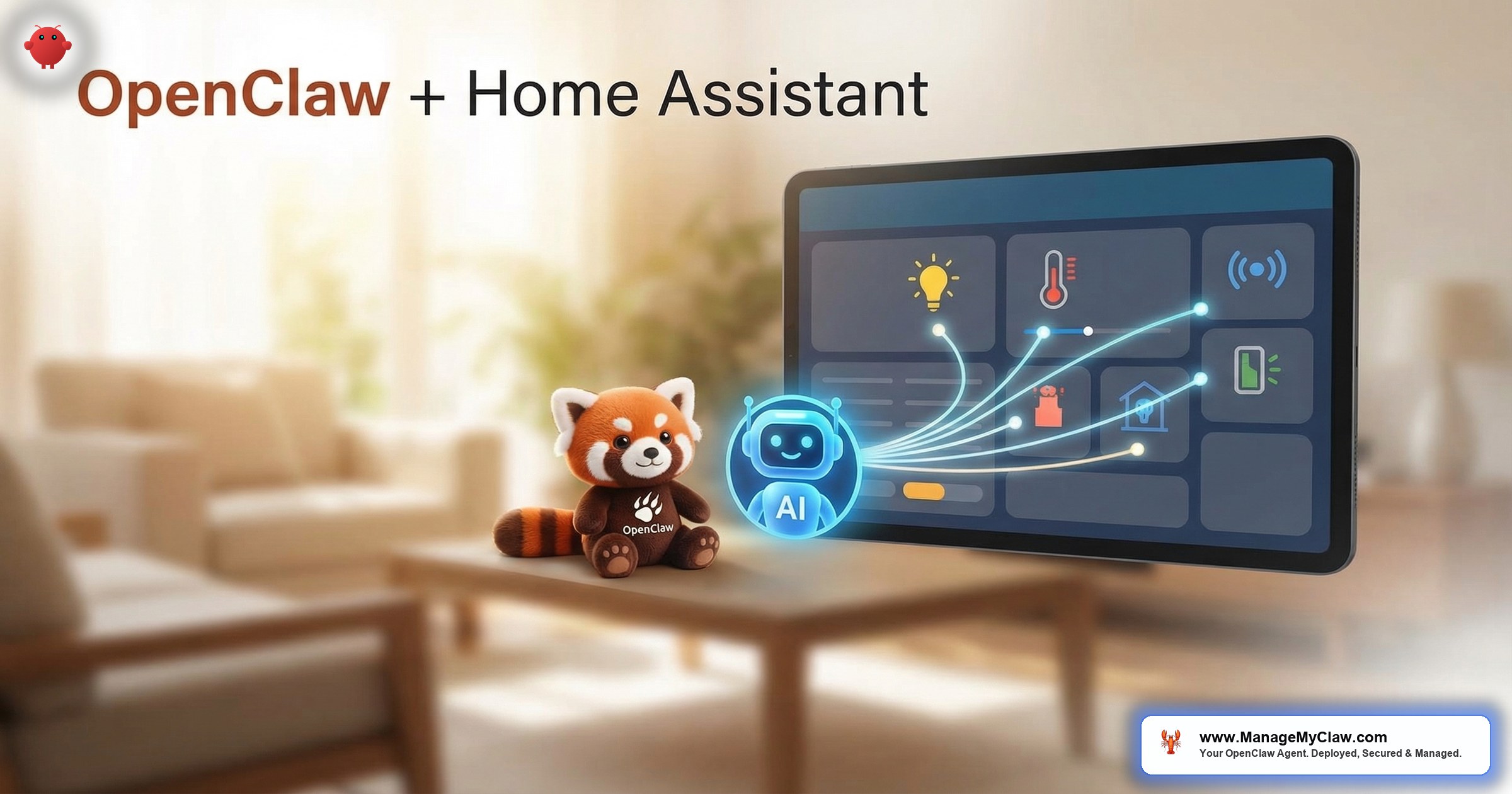
Home Assistant has 1 million+ active installations. OpenClaw has 250,000+ GitHub stars. Both are open source. Both run on local hardware. Together, they turn your AI agent into a smart home controller that understands natural language — “set the house to movie mode” becomes dimmed lights, closed blinds, and the projector warming up.
But connecting an AI agent to your physical home introduces risks that software-only deployments don’t face. A misconfigured email agent drafts a bad response. A misconfigured home agent unlocks your front door at 3 AM, turns off the heating in January, or triggers your alarm system.
When the agent can control the physical world, the permission boundaries aren’t about convenience anymore. They’re about safety.
This guide covers the full OpenClaw + Home Assistant smart home integration — from API connection to entity filtering to the safety constraints that prevent your AI agent from doing something you can’t undo with a keyboard shortcut.
How the Integration Works
Home Assistant exposes a REST API and a WebSocket API. OpenClaw connects to either through a custom skill that translates natural language requests into Home Assistant API calls. The architecture:
You say: “Turn on the living room lights and set them to 40%.”
OpenClaw: Parses the request, identifies the entity (light.living_room), the action (turn_on), and the parameter (brightness: 102).
Home Assistant: Executes the service call and confirms the state change.
The connection uses a Long-Lived Access Token from Home Assistant — stored in Composio or as an environment variable, never hardcoded in the skill script.
Setting Up the Connection
Step 1: Generate a Home Assistant Long-Lived Token
In Home Assistant: Profile > Security > Long-Lived Access Tokens > Create Token. Give it a descriptive name like “OpenClaw Agent.” Copy the token immediately — Home Assistant only shows it once.
Step 2: Create the Home Assistant Skill
The SKILL.md defines what the agent can do with Home Assistant:
# Home Assistant Control Skill

## Description
Controls smart home devices through Home Assistant.
Can turn devices on/off, adjust brightness/temperature,
check device states, and run automations.

## Safety Rules
- NEVER unlock doors or disable security systems
- NEVER adjust heating/cooling beyond 15-28 Celsius range
- ALWAYS confirm destructive actions before executing
- Log every action to the audit trail

## Tools
- `ha_get_states`: Get current state of all or specific entities
  Usage: python3 scripts/ha_control.py get_state [entity_id]
- `ha_call_service`: Call a Home Assistant service
  Usage: python3 scripts/ha_control.py call_service
         <domain> <service> <entity_id> [data_json]
- `ha_list_entities`: List all available entities by domain
  Usage: python3 scripts/ha_control.py list_entities [domain]
Step 3: Write the Control Script
The Python script handles API communication with Home Assistant:
import os, sys, json, urllib.request

HA_URL = os.environ.get("HA_URL", "http://homeassistant.local:8123")
HA_TOKEN = os.environ.get("HA_TOKEN")

BLOCKED_DOMAINS = ["lock", "alarm_control_panel"]
BLOCKED_SERVICES = ["lock.unlock", "alarm_control_panel.disarm"]

def api_call(path, method="GET", data=None):
    headers = {
        "Authorization": f"Bearer {HA_TOKEN}",
        "Content-Type": "application/json"
    }
    req = urllib.request.Request(
        f"{HA_URL}/api/{path}",
        headers=headers,
        method=method,
        data=json.dumps(data).encode() if data else None
    )
    with urllib.request.urlopen(req) as resp:
        return json.loads(resp.read())

def call_service(domain, service, entity_id, data=None):
    service_key = f"{domain}.{service}"
    if domain in BLOCKED_DOMAINS or service_key in BLOCKED_SERVICES:
        return {"error": f"Blocked: {service_key} is restricted"}
    payload = {"entity_id": entity_id}
    if data:
        payload.update(data)
    return api_call(f"services/{domain}/{service}", "POST", payload)
The BLOCKED_DOMAINS and BLOCKED_SERVICES lists are hardcoded in the script — not in the agent’s prompt. This means they survive context compaction and can’t be overridden by prompt injection. The same principle behind the inbox-wipe prevention: safety constraints at the code level, not the prompt level.
Entity Filtering: What the Agent Can and Can’t Touch
Not every Home Assistant entity should be accessible to OpenClaw. Use entity filtering to expose only the devices the agent needs:
| Domain | Recommended Access | Reasoning |
|---|---|---|
| Lights | Full control | Low risk. Easy to reverse. |
| Climate | Limited (temperature range only) | Constrain to safe range (15–28°C). Prevent pipe-freezing or overheating. |
| Media players | Full control | Low risk. Volume limits recommended. |
| Locks | Read-only (state check only) | Never allow an AI agent to unlock doors. |
| Alarm | Blocked entirely | Security systems should never be AI-controlled. |
| Sensors | Read-only | Temperature, humidity, motion. Useful for briefings. |
| Garage door | Blocked entirely | Physical access control. Same reasoning as locks. |
On r/homeassistant, a thread titled “Would you let an AI agent control your smart home?” (234 upvotes, 156 comments) captured the community’s consensus: “Lights and media? Sure. Locks and garage? Absolutely not. HVAC with limits? Maybe. The question isn’t ‘can it’ — it’s ‘what happens if it hallucinates at 2 AM.'”
Why this matters: OpenClaw’s context compaction can erase safety instructions from the agent’s memory — the same mechanism behind the inbox-wipe incident. For a smart home agent, the consequence of lost safety rules isn’t deleted emails. It’s an unlocked front door. Keep physical access controls out of the agent’s reach entirely.
Practical Use Cases That Actually Work
Morning briefing with home context. The agent already pulls your calendar, email, and weather. Add Home Assistant sensor data: “Your house is at 21 degrees. The laundry finished 2 hours ago. The front door was opened at 7:14 AM (partner left for work).” One message, everything you need to know about your home and your day.
Scene automation via natural language. Instead of configuring Home Assistant automations in YAML, tell the agent: “When I say ‘movie mode,’ dim the living room to 20%, turn off the kitchen lights, and set the TV input to HDMI 2.” The agent translates this into a Home Assistant script and saves it.
Energy monitoring and recommendations. The agent reads your smart meter data, compares against historical averages, and reports: “Electricity usage is 30% above your weekly average. The heat pump ran 4 extra hours because the thermostat was set to 25 degrees overnight. Recommendation: reduce night temperature to 20 degrees.”
Anomaly detection. Motion sensor triggered in the garage at 3 AM? The agent checks if anyone is home, checks if the alarm is armed, and sends you a notification: “Motion detected in garage at 3:12 AM. No one is home. Alarm is armed. Camera snapshot attached.”
The Bottom Line
OpenClaw + Home Assistant is the natural language interface your smart home was missing. But the integration requires tighter safety constraints than any software-only workflow. Hardcode your blocked domains in the control script. Limit HVAC to safe temperature ranges. Keep locks and alarms entirely outside the agent’s reach. The goal is an agent that makes your home smarter — not one that makes it less safe.
Frequently Asked Questions
Can OpenClaw run on the same Raspberry Pi as Home Assistant?
Not recommended. Home Assistant on a Raspberry Pi 4 already uses 1-2GB of RAM. OpenClaw needs at least 2GB additional. A Pi 4 with 4GB will struggle. A Pi 5 with 8GB is feasible but tight. The better approach: run Home Assistant on the Pi and OpenClaw on a $12/month VPS — connected over your local network or Tailscale VPN.
Does the OpenClaw agent need to be on the same network as Home Assistant?
Not if you use Tailscale. Both your OpenClaw VPS and your Home Assistant instance can join the same Tailscale network, and the API connection works through Tailscale’s encrypted mesh — no port forwarding, no public exposure of your Home Assistant interface. This is the recommended setup for VPS-based OpenClaw deployments.
What if the agent misinterprets a command and changes the wrong device?
This is why entity naming matters. If you have “Living Room Light” and “Living Room Lamp,” the agent might pick the wrong one. Name entities clearly and distinctly in Home Assistant. For critical actions, require the agent to confirm the entity and action before executing. Low-risk reversible actions (lights, media) can execute immediately. Higher-risk actions (climate changes) should always confirm.
How much does the Home Assistant integration add to API costs?
Minimal. Home Assistant API calls return small JSON payloads. The token overhead is mostly in the SKILL.md context and the natural language processing of your commands. Budget an additional $3-$8/month for a moderately active home automation setup — a few commands per day plus sensor data in your morning briefing.
Can I use this integration to include smart home data in my business morning briefing?
Yes — and it’s one of the best use cases. Your morning briefing already covers calendar, email, weather, and KPIs. Adding home context (indoor temperature, energy usage, security status) makes it a true “state of everything” report. The sensor data is read-only, so there’s no safety concern.
Your AI Agent, Your Smart Home, One Dashboard
ManageMyClaw deploys and secures your OpenClaw agent with custom integrations including Home Assistant. Starting at $499, with security hardening at every tier.
Get Started — No Call Required