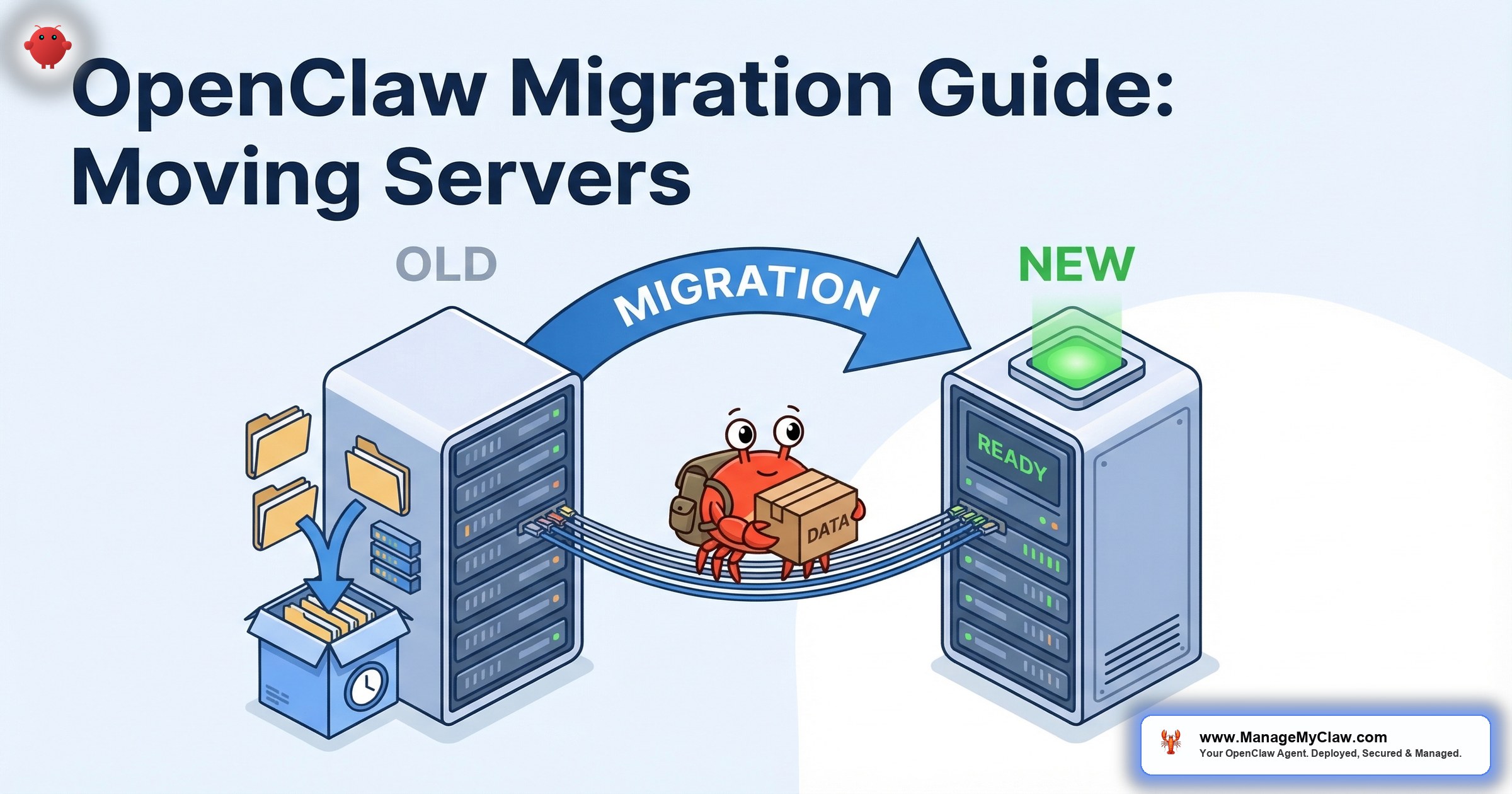
Your VPS provider raises prices. Your region gets better latency options. You outgrow your current server specs. Your hosting company has an outage that lasts 6 hours and you decide that is 6 hours too many. Whatever the reason, you need to move your OpenClaw deployment to a new server without losing your workflows, memory, sessions, or security configuration.
This guide walks through the complete migration process: stop, archive, transfer, restore, verify. Every step, every file path, every verification check. Budget 60–90 minutes for the entire process.
The worst migration is the one you do in a panic at 2 AM because your server went down and you never documented where your configuration lives. This guide exists so that does not happen.
Before You Start: What You Need
On your current server:
- SSH access to the running OpenClaw instance
- Knowledge of where your OpenClaw data directory lives (typically
~/.openclaw) - Your Docker Compose file or run command
- Your Composio OAuth credentials (or access to the Composio dashboard)
On your new server:
- SSH access with a non-root user configured
- Docker and Docker Compose installed
- Sufficient disk space (check current usage:
du -sh ~/.openclawon old server) - Tailscale installed (if you use VPN access)
- UFW configured with DOCKER-USER chain rules
Estimated downtime: 15–30 minutes. The agent will be offline between stopping the old instance and starting the new one. Plan the migration during low-activity hours — not Monday at 8 AM when your morning briefing is supposed to fire.
Step One: Stop the Gateway
Do not try to copy files from a running instance. Active sessions, in-progress conversations, and memory writes can produce corrupted state if the process is writing while you are copying.
# On the old server
docker compose down
Verify it stopped:
docker psNo OpenClaw containers should be listed. If any remain, force stop them:
docker stop $(docker ps -q --filter "name=openclaw")
docker rm $(docker ps -aq --filter "name=openclaw")
Why this matters: A corrupted memory database or half-written session file means lost context, lost preferences, and an agent that has forgotten everything your Supermemory taught it over the past 3 weeks. Stopping cleanly is not optional.
Step Two: Archive Everything
Your OpenClaw state lives in several locations. All of them need to be included in the archive.
Files to archive:
| What | Where | Contains |
|---|---|---|
| OpenClaw data directory | ~/.openclaw/ |
Agent config, memory, sessions, logs |
| Docker Compose file | Project directory (varies) | Container configuration, volumes, network |
| Environment file | .env in project directory |
API keys, model config, Composio tokens |
| Custom skills | Skills directory (varies) | Locally installed or custom ClawHub skills |
| Firewall rules | UFW + iptables | Security configuration |
| Tailscale config | /var/lib/tailscale/ |
VPN identity (re-auth on new server) |
Create the archive:
# On the old server
# Archive the OpenClaw data directory
tar -czf openclaw-backup-$(date +%Y%m%d).tar.gz
  ~/.openclaw/
  /path/to/docker-compose.yml
  /path/to/.env
  /path/to/custom-skills/

# Export firewall rules
sudo ufw status verbose > ufw-rules-backup.txt
sudo iptables-save > iptables-backup.txt

# Check archive integrity
tar -tzf openclaw-backup-$(date +%Y%m%d).tar.gz | head -20
Verify the archive size: If your archive is suspiciously small (under 1 MB for an active deployment), something is missing. A typical deployment with memory, sessions, and logs runs 10–500 MB depending on how long it has been running.
Step Three: Transfer to the New Server
# From your local machine or old server
scp openclaw-backup-*.tar.gz user@new-server-ip:~/
scp ufw-rules-backup.txt iptables-backup.txt user@new-server-ip:~/
For large archives (500 MB+), use rsync instead of scp for resume-on-failure:
rsync -avz --progress openclaw-backup-*.tar.gz user@new-server-ip:~/Verify the transfer: Check file sizes match on both servers. A truncated transfer means corrupted data.
# On old server
ls -la openclaw-backup-*.tar.gz

# On new server
ls -la openclaw-backup-*.tar.gz

# Sizes must match exactly
Step Four: Restore on the New Server
# On the new server
# Extract the archive
tar -xzf openclaw-backup-*.tar.gz -C /

# Verify extraction
ls -la ~/.openclaw/
ls -la /path/to/docker-compose.yml
Update the environment file: If your new server has a different IP address, hostname, or Tailscale identity, update the .env file accordingly. API keys and Composio tokens should remain the same.
Restore firewall rules:
# Review the backed-up rules first
cat ufw-rules-backup.txt

# Apply UFW rules
sudo ufw allow ssh
sudo ufw allow from [your-tailscale-ip] to any
# Add any other rules from your backup

# CRITICAL: Configure the DOCKER-USER chain
# This is the rule Docker bypasses that most setups miss
sudo iptables -I DOCKER-USER -j DROP
sudo iptables -I DOCKER-USER -m conntrack --ctstate ESTABLISHED,RELATED -j ACCEPT
sudo iptables -I DOCKER-USER -s 127.0.0.1 -j ACCEPT

sudo ufw enable
Do not skip the DOCKER-USER chain. This is the single most common security gap in OpenClaw deployments. UFW rules do not apply to Docker containers by default. The DOCKER-USER chain is what actually blocks unauthorized network access to your agent.
Step Five: Start and Verify
# Pull the latest (or matching) Docker image
docker compose pull

# Start the containers
docker compose up -d

# Check container status
docker ps

# Check Gateway logs for errors
docker compose logs --tail 50
Verification checklist:
- Gateway connection: Send a test message through your primary channel (Telegram, Slack). Does the agent respond?
- Memory: Ask the agent “What are my standing meetings?” or reference a previous conversation. Does it remember?
- Tool access: Ask the agent to check your email or calendar. Does Composio OAuth still work?
- Scheduled tasks: If you have cron-triggered workflows (morning briefing), verify the cron is configured and will fire at the correct time.
- Security: From an external IP, try to connect to the Gateway port directly. It should be blocked by the firewall.
- VPN: Connect through Tailscale and verify agent access works through the VPN.
Common Migration Issues and Fixes
Error 1008: Gateway Token Invalid
The most common post-migration error. The Gateway token from the old server may not be valid on the new one. Fix: restart the Gateway to generate a new token, then reconnect your channels.
Composio OAuth Tokens Expired
Some OAuth tokens are bound to the server IP or hostname. If Composio connections fail after migration, re-authorize the affected connections through the Composio dashboard. This takes 2–3 minutes per tool.
File Permission Errors
If the user ID on the new server differs from the old one, file permissions may prevent OpenClaw from reading its own data. Fix:
sudo chown -R $(whoami):$(whoami) ~/.openclaw/Memory Database Corruption
If you copied files from a running instance (did not stop the Gateway first), the Supermemory database may be corrupted. Symptoms: agent does not remember anything from previous sessions. If this happens, the memory is lost. Start fresh with the agent re-learning your preferences over the next 2–3 weeks. This is why Step One is non-negotiable.
Docker Image Version Mismatch
If you pull the latest image on the new server but your configuration was written for an older version, config format changes may break things. Pin the Docker image version in your Compose file to match the version running on your old server. Upgrade to the latest version separately after verifying the migration succeeded.
Step Six: Decommission the Old Server
Do not delete the old server immediately. Keep it running (but with OpenClaw stopped) for at least 7 days after migration. If something goes wrong on the new server — a missed file, a corrupt database, a configuration detail you forgot — you want the old server available as a reference.
After 7 days of successful operation on the new server:
- Revoke Tailscale access from the old server
- Delete sensitive files (API keys, OAuth tokens, the .env file)
- Destroy the VPS instance
The Bottom Line
OpenClaw migration is a 6-step process: stop, archive, transfer, restore, verify, decommission. The entire procedure takes 60–90 minutes with 15–30 minutes of actual downtime. The most common failures come from copying files from a running instance (corrupted data) and forgetting the DOCKER-USER iptables chain (security gap on the new server).
The best migration is the one you practiced before you needed it. Run through this process on a test server once, and the real migration will take half the time.
Frequently Asked Questions
How long will my agent be offline during migration?
15–30 minutes for a typical deployment. The downtime starts when you stop the Gateway on the old server and ends when the Gateway is running on the new server with all verifications passed. Messages sent to the agent during this window will not be lost — they queue in the channel (Telegram, Slack) and the agent processes them when it comes back online.
Will the agent lose its memory and learned preferences?
Not if you follow the process correctly. Supermemory data is stored in files within the ~/.openclaw/ directory. The archive step captures this data, and the restore step puts it in the same location on the new server. The agent picks up where it left off. Memory is only lost if you copy files from a running instance (Step One prevents this) or if the archive is incomplete.
Do I need to re-authorize all my Composio OAuth connections?
Usually not. Most OAuth tokens are stored in the Composio vault and are not tied to a specific server IP. However, some providers bind tokens to the originating IP. If a specific tool connection fails after migration, re-authorize it through the Composio dashboard — 2–3 minutes per tool. Gmail, Google Calendar, and Slack typically migrate without re-authorization. Some CRM integrations may require it.
Can I migrate between different VPS providers (such as from DigitalOcean to Hetzner)?
Yes. OpenClaw runs in Docker, which abstracts the underlying infrastructure. As long as the new server has Docker installed and meets the minimum specs (4 GB RAM recommended), the provider does not matter. The migration process is identical whether you are moving within the same provider, between providers, or from a VPS to a Mac Mini (or vice versa).
What if something goes wrong and I need to roll back?
This is why you keep the old server running for 7 days. If the new server has issues, start the OpenClaw containers on the old server (docker compose up -d), update your Tailscale routing to point to the old IP, and you are back to the previous state. The archive on the old server is still intact. Diagnose the issue on the new server, fix it, and try the migration again.
Migrations handled for you.
ManageMyClaw Managed Care includes server migrations as part of the service. We handle the archive, transfer, security configuration, and verification — with tested rollback procedures. No downtime surprises. Learn about Managed Care.
See Plans and PricingRelated reading: Managed OpenClaw Deployment • How OpenClaw Actually Works: Architecture Explained • OpenClaw Security: The Complete Hardening Guide
Not affiliated with or endorsed by the OpenClaw open-source project.