“Current AI can automate 60–70% of the time employees spend on language-heavy workflows — reporting, documentation, email, internal communication. That’s not a pitch. That’s a measurement.”
— McKinsey Digital, 2026
McKinsey estimates that knowledge workers spend up to 60% of their time on routine admin instead of high-value work. A 2026 industry analysis found that nearly 60% of business process automation initiatives report positive ROI within 12 months. But a MasterOfCode study found 56% of AI investments are returning zero measurable ROI.
The gap between those two numbers almost always comes down to one decision: which workflows you automate first, and whether you wait for each one to stabilize before adding the next.
Think of it like hiring. You don’t give the new employee 6 projects on their first day. You give them one, see how they handle it, and expand from there. Same principle, except the employee works 24/7 and doesn’t take PTO.
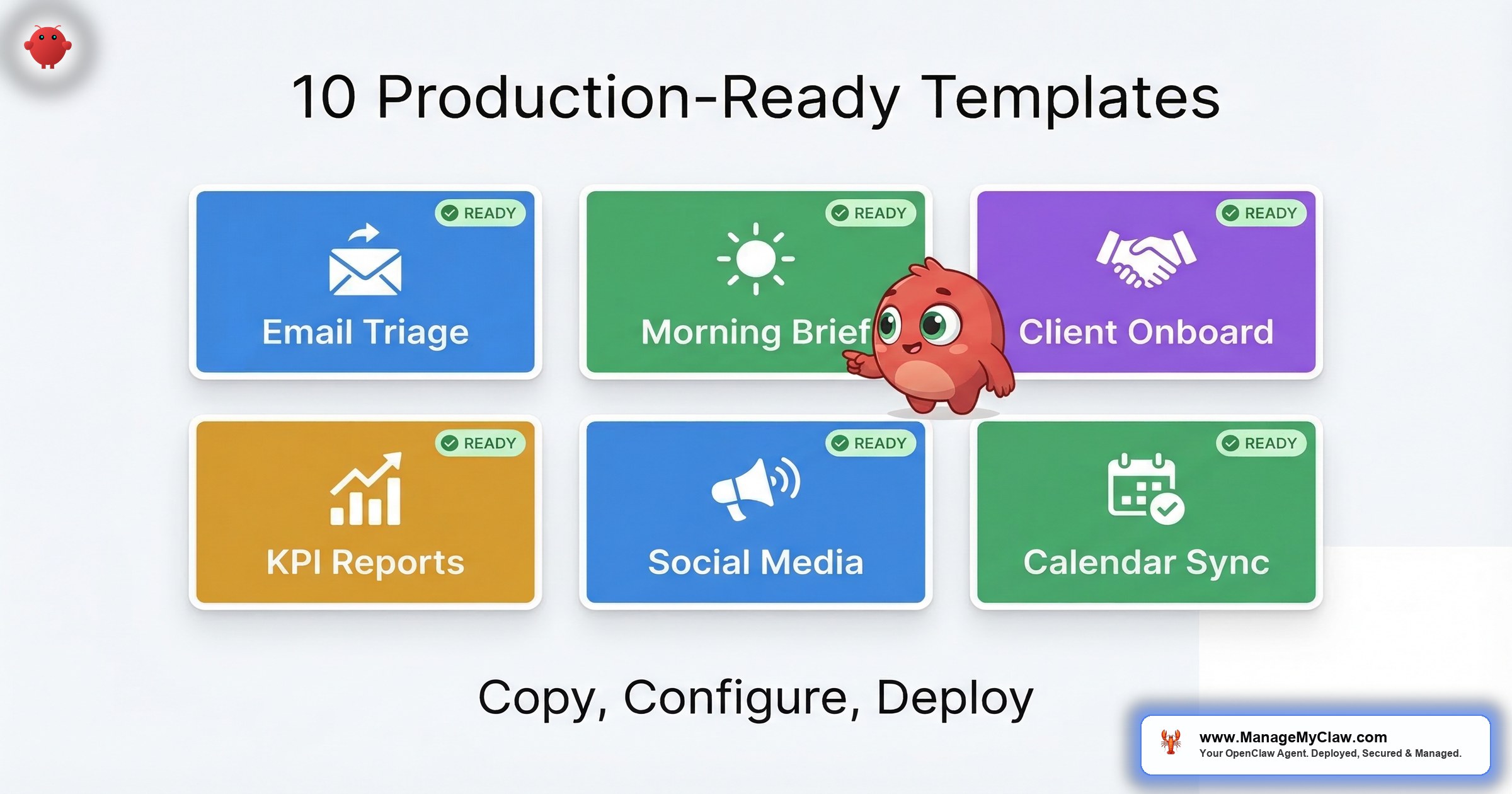
This is the reference guide for OpenClaw’s 6 core workflows. What each one does, what triggers it, what it costs to run, what prerequisites it needs, and — the part most guides skip — what breaks it if you configure it wrong.
The Deployment Order That Actually Works
Start with WF-01 (Morning Briefing) or WF-02 (Email Triage). Always. WF-01 is purely read-only — it pulls data from your calendar, inbox, and task manager but can’t modify anything. The worst-case failure mode is a malformed message. WF-02 delivers the highest single-workflow time savings — 78% reduction in email processing time — and most founders feel the impact within the first week.
Once your first workflow has run without intervention for 30 days, add WF-03 or WF-05 depending on whether client onboarding or reporting is your bigger bottleneck. WF-04 (Social Media) slots in whenever you have a documented brand voice. WF-06 (Customer Service) comes last. Always.
“The best OpenClaw setups I’ve seen all have one thing in common: they do less.”
— r/openclaw, 103 upvotes, 63 comments“Solid framework. The ‘boring setup’ principle is real — but I’d push back slightly on the ceiling. The key isn’t doing less, it’s building incrementally.”
— Top reply, 13 upvotesThat’s the philosophy behind the order below. One workflow. Stable. Then the next.
Every failed multi-workflow deployment follows the same pattern — 3 or 4 workflows launched simultaneously before any of them are calibrated. When something breaks, you don’t know which workflow caused it. Sequential deployment isn’t slower. It’s how you avoid spending a weekend debugging a cascade of issues that started with one misconfigured trigger.
Recommended Deployment Sequence
- Step 1: WF-01 (Morning Briefing) — read-only, zero risk
- Step 2: WF-02 (Email Triage) — highest time savings per workflow
- Step 3: WF-03 or WF-05 — based on your bottleneck
- Step 4: WF-04 (Social Media) — after brand voice is documented
- Step 5: WF-06 (Customer Service) — always last, Business-only
WF-01: Morning Briefing — Your Day in One Message
You open 5 apps every morning to piece together what matters today: Gmail for overnight priorities, Calendar for the schedule, your task manager for what’s urgent, a dashboard for yesterday’s numbers, a weather app because your first meeting is in-person. That’s 20 minutes of context-gathering before you’ve done any actual work.
WF-01 collapses those 5 checks into a single message delivered to your phone before you start your day.
A cron job fires at your configured time (default 8 AM), pulls from all connected sources, and writes a synthesized briefing in natural language. By week 3, Supermemory context accumulates enough calibration data that the agent knows your standing meetings don’t need explanation, your high-priority clients get flagged by name, and the briefing format has adjusted to what you actually read versus skim.
| Spec | Details |
|---|---|
| Trigger | Cron job (default 8 AM, configurable) |
| Tools connected | Google Calendar, Gmail, weather API, task manager (optional), KPI dashboard (optional) |
| Delivery channel | Telegram, Slack, or WhatsApp |
| Monthly API cost | $5–15 |
| Available in | Starter ($499), Pro ($1,499), Business ($2,999) | Standalone: $199 |
| Best for | Any founder spending 20+ minutes each morning gathering context across multiple apps |
| Prerequisites | Google Calendar and Gmail connected via Composio OAuth; preferred delivery channel configured |
| What breaks it | Composio OAuth token expiry. If Google revokes access (common after 90 days of inactivity), your briefing silently fails. Set a calendar reminder to verify token health every 60 days — or let Managed Care handle it. |
WF-01 has a zero risk floor. It’s purely read-only access to your accounts — nothing can be modified, deleted, or sent. If the configuration is wrong, you get a bad briefing or no briefing. That’s it. You build trust with your agent on a workflow where the worst-case outcome is a missing message, not a missing email.
WF-02: Email Triage — 78% Less Time in Your Inbox
The average professional receives 117 emails per day. A cloudHQ analysis puts knowledge workers at roughly 28% of their workweek on email — 11 to 12 hours for a standard 40-hour week. But here’s the thing: most of that volume isn’t communication that needs you. It’s vendor follow-ups, scheduling requests, status checks, and newsletters you’ll never read.
WF-02 handles the noise. Your agent scans your inbox on a schedule (or continuously), categorizes by urgency, drafts responses for routine messages, flags the ones that actually need your attention, and archives everything else.
The configuration that makes this safe is specific. Gmail write access is scoped to draft-only by default, with an explicit allowlist of folders the agent can touch. The “never delete” constraint lives in the system-level AGENTS.md configuration file — not in a conversation message where context compaction can erase it mid-session.
That distinction — system-level versus user-level constraints — is exactly the architecture failure that caused the Summer Yue inbox wipe. Meta’s Director of AI Alignment told her agent “Confirm before acting.” That instruction got compressed away when context compaction kicked in. 200+ emails gone. The fix isn’t complicated — it’s a different configuration line. But if you don’t know the line exists, you’re running the same setup she was.
| Spec | Details |
|---|---|
| Trigger | Cron job (scheduled) or continuous inbox monitor |
| Tools connected | Gmail via Composio OAuth |
| Key stat | 78% reduction in email processing time |
| Monthly API cost | $15–40 (50 emails/day ≈ $20/mo) |
| Available in | Starter ($499), Pro ($1,499), Business ($2,999) | Standalone: $249 |
| Best for | Founders spending 1.5+ hours/day on email triage and routine responses |
| Prerequisites | Gmail connected via Composio OAuth; urgency categories and folder structure defined; kill switch configured before live access |
| What breaks it | Undefined urgency categories. If you haven’t specified what “urgent” means, the agent categorizes by its own judgment. Define your urgency tiers explicitly before enabling write access. |
A Bosch Service Solutions implementation documented email clearing time reduced from over 5 minutes to less than 1 minute per email, with 90%+ of emails automatically and correctly pre-classified. At scale, that’s the difference between email as a full-time job and email as a 20-minute check-in.
If you’re spending 2 hours per day on email and you recover 90 minutes, that’s 7.5 hours per week. At $200/hour founder rates, that’s $78,000/year in reclaimed time from a single workflow that costs $15–40/month to run. The ROI math on this one isn’t even close.
WF-03: Client Onboarding — 12x Faster, Zero Dropped Steps
Manual client onboarding is a coordination tax: create Notion project, create Linear board, send welcome email, book kickoff call, notify the team, set up Slack channel. Each step requires your attention, happens at slightly different times, and takes a combined 2 hours per client. That’s fine at 2 clients per month. At 10, it’s 20 hours of admin that scales directly with your growth.
“It’s the ‘success tax’ — the more clients you close, the more hours you spend on steps that look exactly the same every time. Growth should make your life better, not busier.”
— Common founder experienceWF-03 fires the moment a Stripe payment clears (or a Typeform lands, or a CRM event fires). It runs the full sequence automatically: Notion space created, Linear project created, kickoff meeting scheduled, welcome email staged for your approval, team notified in Slack. The 12x speed benchmark — 2 hours to 10 minutes per client — holds at 10 clients/month for approximately $15 in API costs.
The approval gate on the welcome email means nothing goes externally without your review. That matters during the period before you’ve calibrated the agent’s tone to your brand — and it’s a checkbox you should keep enabled until you’ve reviewed at least 20 outputs.
| Spec | Details |
|---|---|
| Trigger | Webhook (Stripe payment, Typeform submission, or CRM event) |
| Tools connected | Stripe or Typeform or CRM, Notion or Linear, Gmail, Google Calendar, Slack |
| Key stat | 12x faster onboarding (2 hours → 10 minutes per client) |
| Monthly API cost | $10–30 (10 new clients/mo ≈ $15/mo) |
| Available in | Pro ($1,499), Business ($2,999) | Standalone: $349 |
| Best for | Service businesses and agencies onboarding 3+ clients per month with a repeatable process |
| Prerequisites | Defined onboarding checklist; Stripe or form webhook configured; at least one project management tool connected; test run with a real client before full deployment |
| What breaks it | Webhook misconfiguration. If Stripe’s payload format doesn’t match what the agent expects, it fires but creates incomplete records. Validate the webhook payload against the agent’s expected schema before going live. See the security guide for integration details. |
Every client you onboard manually is an hour you’re not spending on product, sales, or strategy. At 10 clients/month, you’re recovering 20 hours of admin for $15 in API costs. That’s the automation ROI that actually changes your calendar.
WF-04: Social Media Content Pipeline — Write Once, Distribute Everywhere
Publishing a blog post and then manually adapting it for X, LinkedIn, and your newsletter is 3 separate writing tasks per piece of content. For a content-led founder publishing weekly, that’s 12 additional writing sessions per month that add zero new thinking. They’re reformatting work you already did.
WF-04 detects new content via RSS feed or content calendar event, generates platform-specific versions — not copy-paste, but tone and format adapted per platform — and queues them for review before publishing. You own the source content; the agent handles every derivative output from it.
| Spec | Details |
|---|---|
| Trigger | RSS feed monitor or content calendar cron |
| Tools connected | RSS feed or content calendar, X API, LinkedIn API, Tavily (optional for trending topics) |
| Key stat | 3–5 posts/week automated with platform-adapted formatting |
| Monthly API cost | $10–25 (3–5 posts/week ≈ $15/mo) |
| Available in | Pro ($1,499), Business ($2,999) | Standalone: $249 |
| Best for | Content-led founders and agencies who publish regularly but spend disproportionate time on distribution |
| Prerequisites | Active blog or content calendar with RSS feed; brand voice rules documented; review queue before enabling direct publish |
| What breaks it | Undocumented brand voice. Without explicit rules on tone, style, and what you won’t post about, the agent’s output drifts. Write the brand voice rules before enabling this workflow — even 2 paragraphs is enough. |
Why this matters: Distribution is the bottleneck for most content-led founders. The thinking is done when the blog post is published. Everything after that is reformatting, and reformatting is exactly the kind of structured, pattern-based work that agents handle well.
WF-05: KPI Reporting — 4 Hours of Manual Work in 5 Minutes
Someone on your team is spending 4–6 hours per week pulling metrics from Stripe, Google Analytics, and your CRM, copying them into a spreadsheet, and sending it to whoever needs the numbers. That’s not analysis. It’s data retrieval with a formatting step.
WF-05 cuts the 4–6 hours to 5 minutes of agent runtime. Pure read-only access to defined data sources, structured output to your preferred channel, on your chosen cadence — daily, weekly, or monthly.
Like WF-01, WF-05 has no write permissions anywhere. It reads, formats, and delivers. The worst outcome of a misconfiguration is a malformed report, not a destructive action. This makes it one of the safest workflows to deploy even before you’ve built significant trust with your agent.
| Spec | Details |
|---|---|
| Trigger | Cron job (daily, weekly, or monthly cadence) |
| Tools connected | Stripe, Google Analytics, CRM (HubSpot, Pipedrive, or Salesforce), Slack or email delivery |
| Key stat | 4–6 hours/week manual reporting → 5 minutes of agent runtime |
| Monthly API cost | $5–15 |
| Available in | Pro ($1,499), Business ($2,999) | Standalone: $249 |
| Best for | Founders or ops leads spending 4+ hours/week pulling and formatting business metrics manually |
| Prerequisites | Defined KPI list with data sources for each metric; read-only API access to Stripe, Analytics, and CRM; preferred report format agreed |
| What breaks it | Ambiguous KPI definitions. “MRR” means different things in different CRMs. Specify exact field names and calculation methods for each metric before setup. A 1-page KPI spec prevents the agent from reporting a number that looks right but is calculated wrong. |
WF-05 doesn’t just save time — it changes what reporting feels like. When pulling the numbers takes zero effort, you stop skipping reports. When you stop skipping reports, you catch problems earlier. The value isn’t in the 5 minutes the agent takes. It’s in the decisions you make because the data is actually in front of you every morning.
WF-06: Customer Service Bot — Business-Only for a Reason
At 50 conversations per day, one person handling all support is a full-time job. WF-06 automates the 80% of inquiries that are routine — pricing questions, feature clarifications, account status, scheduling — and routes the 20% that aren’t to the right human with full conversation context. Lead response time improves 40–60%, which directly impacts conversion for inbound sales pipelines.
WF-06 is Business-only ($2,999), and that restriction isn’t arbitrary.
Running this workflow without proper configuration doesn’t produce a broken agent. It produces an agent giving wrong answers to real customers. That’s the difference between an internal workflow that annoys you when it fails and an external workflow that annoys your customers when it fails. One is a bug. The other is a reputation problem.
You need a full FAQ knowledge base covering at least your 50 most common inquiries, defined escalation triggers, routing logic for each issue type, and an approval gate before the agent sends externally. The Business plan’s 14-day hypercare period with daily check-ins exists specifically to support this configuration complexity.
| Spec | Details |
|---|---|
| Trigger | Webhook (message receipt across configured channels) |
| Tools connected | Email or chat widget, WhatsApp or Telegram (optional), Google Calendar for booking, Slack for escalation routing |
| Key stats | 80% of routine inquiries automated; 40–60% faster lead response time |
| Monthly API cost | $30–80 (50 conversations/day ≈ $50/mo) |
| Available in | Business ($2,999) only | Standalone: $449 |
| Best for | B2C businesses and SaaS products with high inquiry volume where 1 person currently handles all support |
| Prerequisites | Full FAQ knowledge base (50+ common inquiries); escalation trigger definitions; routing logic per issue type; approval step before external sends |
| What breaks it | Incomplete knowledge base. If the agent can’t find an answer, it either makes one up or escalates everything — both are problems. The 80% automation rate requires the knowledge base to cover your most common inquiries with accurate, current answers. |
Why this matters: WF-06 has the highest upside and the highest stakes. A well-configured customer service bot handles 80% of inbound at near-zero marginal cost. A poorly configured one gives wrong answers at scale and you find out from angry customers, not from an error log. The Business-only restriction and the 14-day hypercare period aren’t upsells — they’re guardrails.
Total Infrastructure Cost: What 6 Workflows Actually Cost to Run
Running all 6 workflows, your monthly operating cost lands in the $60–210/month range. That includes VPS hosting and the API costs for every workflow combined:
| Component | Monthly Cost | Write Access? |
|---|---|---|
| VPS hosting | $12–24 | N/A |
| WF-01 Morning Briefing | $5–15 | No (read-only) |
| WF-02 Email Triage | $15–40 | Draft-only (scoped) |
| WF-03 Client Onboarding | $10–30 | Yes (with approval gate) |
| WF-04 Social Media Pipeline | $10–25 | Yes (with review queue) |
| WF-05 KPI Reporting | $5–15 | No (read-only) |
| WF-06 Customer Service | $30–80 | Yes (with approval + escalation) |
| Total (all 6 workflows) | $60–210/month | — |
Most founders running 2–3 workflows land in the $80–130/month range. WF-06 is the high-cost outlier — drop it and the ceiling falls to $130/month. For context, a 2026 industry benchmark found that businesses using automation see an average ROI of 200% in the first year. At $80–130/month, the breakeven is measured in days, not months.
For a detailed breakdown of how setup and ongoing costs compare across providers, see the ManageMyClaw vs. DIY comparison.
Extending Workflows with ClawHub Skills (Carefully)
ClawHub, OpenClaw’s public marketplace, has 13,729+ community-built skills that can extend any of the 6 core workflows. A skill might add a new data source to WF-05’s reporting, a new delivery channel to WF-01’s briefing, or a new integration to WF-03’s onboarding sequence.
Vet before installing. The ClawHavoc campaign in early 2026 found 2,400+ malicious skills on ClawHub. The attack vector: malicious skills wrote modified instructions directly to SOUL.md and MEMORY.md, giving them persistent control of the agent’s behavior even after the skill appeared to complete.
“Nah everytime when I update something would go wrong with my claw and I’d spend next 48 hours to optimise him. Then there you go another update.”
— Top comment (25 upvotes) on r/openclaw “OpenClaw 2026.3.2 just dropped” post (156 upvotes)That’s the reality of the OpenClaw update cycle. 7 updates in 2 weeks is normal. Each one can break skill compatibility, change config formats, or introduce new bugs. Skills that touch your agent’s configuration files for any reason should be treated as a potential security event.
Why this matters: The skill ecosystem is the fastest way to extend your workflows — and the fastest way to break them. If you’re self-managing, verify every skill’s source code before installation. If you’re on ManageMyClaw’s Managed Care ($299/month), every ClawHub skill is vetted against known malicious packages before it touches your agent. For the full security hardening checklist, start there.
Adding Workflows After Setup
Additional workflows can be added as standalone configurations at $149–449 per workflow depending on complexity:
- WF-01 and WF-02: $149–249 each
- WF-03, WF-04, WF-05: $249–349 each
- WF-06: $449 standalone (knowledge base configuration requirements)
If you’re on Managed Care ($299/month), minor configuration changes — adjusting delivery channels, cron schedules, updating your KPI metric list — are covered under the 2 hours of hands-on support included each month.
The sequential philosophy applies here too: add 1 workflow, run it for 30 days, confirm it’s calibrated correctly, then add the next. The 30-day window is the minimum before you have enough run data to know what your agent is doing well and what needs adjustment.
The Bottom Line
Gartner predicts 40% of enterprise applications will include task-specific AI agents by end of 2026, up from less than 5% in 2025. The workflow library above isn’t experimental. It’s the kind of agent-powered automation that’s becoming standard infrastructure for any business that runs on email, reporting, and client coordination.
The ROI math is measured in weeks, not years. But none of that matters if you deploy them in the wrong order, skip the security hardening, or give the agent permissions it shouldn’t have.
The founders getting results from OpenClaw workflows aren’t running the most. They’re running the right ones, in the right order, with the right constraints.
Start with 1. Get it right. Then add the next.
Frequently Asked Questions
Which workflow should I start with?
WF-01 for most founders. It’s $5–15/month, purely read-only (nothing can be modified in your accounts), and delivers visible value from day 1. If email is your biggest time drain, WF-02 is the better starting point — the 78% reduction in email processing time is the highest-impact single workflow for most knowledge workers. Either way, get 1 stable before adding a second.
Why is WF-06 Business-only?
Because it’s the only workflow that talks directly to your customers. Misconfigured internal workflows waste your time. A misconfigured customer-facing workflow damages trust. WF-06 requires a complete knowledge base, escalation routing, and approval gates — the Business plan’s 14-day hypercare period with daily check-ins provides the support structure to get that right.
Can I run multiple workflows from day 1?
Technically, yes — OpenClaw supports concurrent workflows in isolated sessions. Practically, running 3 or 4 workflows simultaneously before any are calibrated means debugging multiple sources of unexpected behavior at once. Even the Business plan ($2,999), which includes 5 workflows, deploys them sequentially and validates each one before the next goes live. 30 days of stable operation is the minimum between additions.
What happens when an OpenClaw update breaks a workflow?
Without Managed Care: you find out when the workflow stops producing output, often without a clear error message. OpenClaw ships 7 updates in a 2-week period, and some change config formats without migration guides. With Managed Care ($299/month): updates are tested against your specific configuration in staging before touching production. If an update would break your setup, it’s held until a compatible version is available.
Are the monthly API costs fixed or variable?
Variable based on usage volume. WF-02 (email triage) at 50 emails/day runs approximately $20/month; at 200 emails/day it’s closer to $60/month. WF-06 (customer service) at 10 conversations/day is under $10/month; at 500 conversations/day it approaches the $80 ceiling. WF-01 and WF-05 ($5–15 each) are effectively flat regardless of volume because they run on a fixed cron schedule, not in response to incoming data.
Do I need technical skills to use these workflows?
To use them daily, no. You interact with your agent in plain language. The technical barrier is entirely in deployment — Docker sandboxing, firewall configuration, OAuth setup, permission scoping. That’s the part that takes 15+ hours of DIY time and where most security gaps happen. Services like ManageMyClaw handle the deployment and hardening so you go straight to using workflows in under 60 minutes, starting at $499.