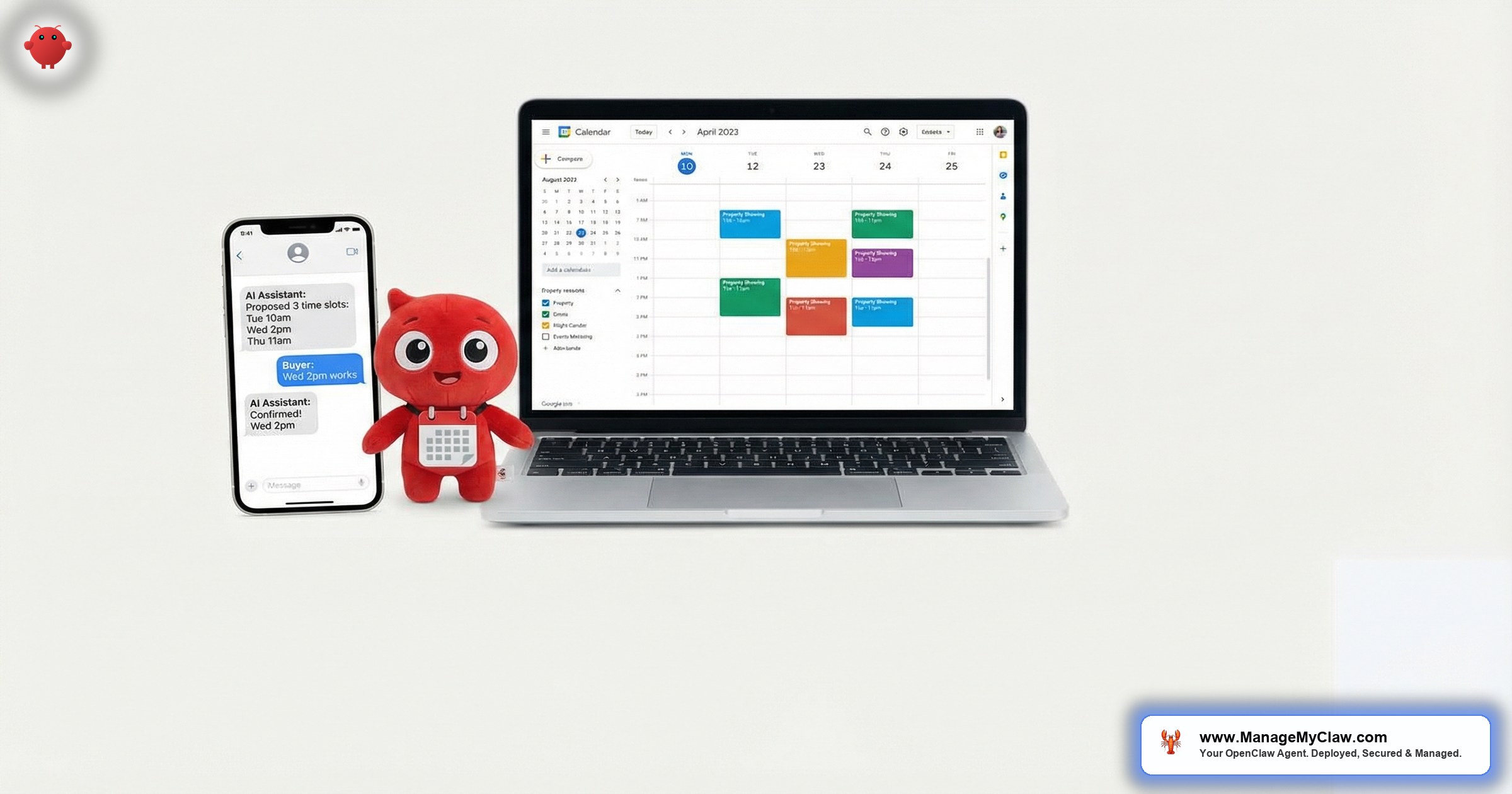
“Saturday, 9:47 PM. A buyer texts about your waterfront listing. You’re at dinner. 3 hours later you reply. By then she’s already confirmed a showing with the agent across the street.”
That’s not a worst-case scenario — it’s a Tuesday. The National Association of Realtors reports that 78% of buyers work with the first agent who responds. Not the best agent. The fastest. And scheduling a showing — the single most conversion-critical step in a real estate transaction — still runs on a medieval workflow: text, wait, text back, wait, propose a time, wait, confirm. 3 to 5 messages over 2 to 8 hours, all to pin down a 30-minute slot.
OpenClaw is an open-source AI agent framework — 250,000+ GitHub stars, bare-metal deployment via systemd on your own server — that functions as an automated viewing scheduler for real estate agents. It reads your Google Calendar through Gog OAuth, identifies available slots, proposes 3 options to the buyer, handles the back-and-forth negotiation, confirms the appointment, and sends reminders before the showing. All without you touching your phone.
It’s not a calendar link you paste into a text message and hope they click. It’s an agent that reads the inquiry, checks your actual availability, and has the scheduling conversation for you — in the same email thread the lead started.
This post walks through the full flow of OpenClaw’s automated viewing scheduler — from the moment a lead asks to see a property to the moment they walk through the front door. If you’ve read the pillar guide on OpenClaw for real estate, consider this the deep dive into the scheduling layer specifically.
Why Showing Scheduling Is the Bottleneck You Don’t Track
You know your conversion rate from lead to closing. You probably know your average days on market. But do you know how many showings you lose to scheduling friction? Most agents don’t, because those losses are invisible — the buyer who never replied to your “How about Thursday at 3?” text didn’t tell you they booked with someone else. They just disappeared.
Here’s what the manual scheduling workflow actually looks like:
| Step | What Happens | Time Elapsed |
|---|---|---|
| 1. Inquiry arrives | Buyer emails or texts: “I’d like to see the house on Oak Street.” | 0 min |
| 2. You see it | You’re in a showing, at a closing, or at dinner. You see the message 45 minutes to 3 hours later. | 45 min – 3 hrs |
| 3. You check your calendar | Open Google Calendar, scroll through the next 48 hours, identify 2–3 open slots. | +5 min |
| 4. You reply | “How about Thursday at 2 PM or Friday at 10 AM?” | +2 min |
| 5. Buyer replies | “Thursday doesn’t work. Saturday?” — now you’re back to step 3. | +1–4 hrs |
| 6. Confirmation | You agree on a time, confirm the address, send a calendar invite. | +30 min |
| Total | 3–5 messages, spread across half a day | 2–8 hours |
Multiply that by 8–15 showing requests per week. That’s 40–75 scheduling messages. And every round-trip adds another window where the buyer books with someone faster.
Scheduling isn’t where you add value. You add value at the showing — walking the property, answering questions, building trust. The 4 texts that got the buyer to the front door? That’s logistics. And logistics is exactly what agents should automate.
A 2024 study by the Real Estate Standards Organization (RESO) found that agents spend an average of 6.2 hours per week on scheduling-related communication. That’s 322 hours per year — 8 full work weeks — spent on text-tag instead of selling.
How the Automated Viewing Scheduler Works: 5 Steps
OpenClaw’s automated viewing scheduler connects 3 systems — your Gmail inbox, your Google Calendar, and the lead’s conversation thread — to handle the full scheduling loop without your involvement. Here’s each step, from inquiry to confirmed appointment.
Step 1: Inquiry Detection
When an email lands in your inbox that mentions a showing, viewing, tour, walk-through, or “I’d like to see,” OpenClaw’s triage system (the same 4-label classification described in the AI email agents for real estate guide) flags it as ACTION and routes it to the scheduling workflow.
The detection isn’t keyword-only. OpenClaw reads the full email body and evaluates intent. “Can I see 742 Evergreen this week?” triggers the scheduler. “I saw the listing on Oak Street — what’s the HOA situation?” does not (that goes to the listing-questions template instead). The agent distinguishes between wanting to visit a property and wanting information about a property.
Explicit showing requests, tour requests, open house inquiries, “when can I see it,” “is it available for viewing,” and re-scheduling requests for previously booked showings. If the lead mentions a specific property address or MLS number, that gets attached to the showing record.
Step 2: Calendar Check via Gog OAuth
The agent authenticates with your Google Calendar through Gog — a lightweight OAuth wrapper that handles token refresh and scoped permissions. OpenClaw reads your calendar with read-only access and identifies available 30-minute or 60-minute slots within the next 72 hours.
The calendar check isn’t a dumb “find empty blocks” scan. It applies your scheduling rules:
- Buffer time. 30-minute gap between showings to account for travel. If you have a 2 PM showing in Westlake, the agent won’t propose 2:30 PM for a property in the Marina.
- Preferred hours. You configure your showing window — maybe 9 AM to 6 PM weekdays, 10 AM to 4 PM weekends. The agent respects those boundaries.
- Blocked slots. Closings, team meetings, personal commitments — anything on your calendar is off-limits. The agent reads event titles (not details) to confirm a slot is genuinely busy.
- Lead preference matching. If the buyer said “weekends work best,” the agent prioritizes Saturday and Sunday slots in its 3 proposals.
The agent reads your calendar the way a good assistant would — not just checking for empty blocks, but understanding which empty blocks actually make sense given your schedule, the property location, and the buyer’s stated preferences.
Step 3: Slot Proposal
OpenClaw drafts a response with exactly 3 available time slots, ranked by likelihood of acceptance. The ranking factors in the lead’s stated preferences (if any), time of day (afternoon slots convert better than morning for residential showings, according to ShowingTime data), and proximity to the inquiry timestamp (sooner options rank higher).
Here’s what the draft looks like before it sends:
The tone matches your configured voice. If you prefer formal (“Dear Ms. Moss”), the agent uses that. If you’re a first-name, casual-tone agent, it mirrors that style. The system prompt controls the output register — you set it once during setup and every response stays consistent.
Step 4: Negotiation Handling
Here’s where the automated viewing scheduler earns its keep. The buyer doesn’t always pick 1 of your 3 slots. Sometimes they counter: “Thursday’s no good — what about Wednesday?” Sometimes they ask a follow-up question in the same thread: “Is there parking?” Sometimes they reply 2 days later after you’ve assumed they ghosted.
OpenClaw handles all 3 scenarios:
-
1
Counter-proposal. The buyer suggests a different day or time. The agent re-checks your calendar for the requested window, identifies available slots, and replies with new options. This loop can repeat 2–3 times before the agent escalates to you with a note: “Lead has declined 3 rounds of scheduling — may need a phone call.”
-
2
Mid-thread question. The buyer replies “Saturday at 1 PM works — is street parking okay?” The agent confirms the time slot AND answers the parking question (if the data is in the listing) or flags the question for you while still locking in the appointment.
-
3
Delayed reply. If the buyer responds 48+ hours after the initial proposal, the agent re-checks your calendar (those original slots may be gone), proposes fresh availability, and picks up the thread naturally: “Great to hear from you — that Thursday slot is taken, but here are 3 new options.”
This is the part where most scheduling tools fall apart. They send 1 message with a booking link and pray. OpenClaw has the actual conversation — the same back-and-forth you’d have, except it happens in 90 seconds instead of 9 hours.
The agent caps at 3 counter-proposal rounds before escalating to you. This prevents infinite scheduling loops with indecisive leads and ensures that high-friction situations get your personal attention. You can adjust this threshold in the system prompt — some agents prefer 2 rounds, some allow 4.
Step 5: Confirmation + Calendar Event
Once the buyer picks a slot, OpenClaw does 4 things simultaneously:
- Creates a Google Calendar event on your calendar with the property address, buyer name, buyer contact info, and any notes from the email thread (budget range, pre-approval status, specific features they asked about).
- Sends a confirmation email to the buyer with the date, time, property address, your contact number, and directions if available. This confirmation includes a line: “If you need to reschedule, just reply to this email.”
- Logs the showing in the morning briefing queue so it appears in your next daily summary alongside new leads and follow-up statuses.
- Queues a reminder — sent to the buyer 24 hours before the showing and again 2 hours before. The reminder includes the address and your phone number in case they’re running late.
The calendar event creation requires write access to Google Calendar — a step up from the read-only permission used during the slot-check phase. Gog OAuth handles this with a scoped token that can create events but can’t delete or modify your existing ones. You grant this permission once during setup and can revoke it from your Google account settings at any time.
Manual Scheduling vs. Automated Viewing Scheduler: Side by Side
Numbers tell the story faster than paragraphs. Here’s the same showing request handled both ways:
| Metric | Manual | OpenClaw |
|---|---|---|
| Time to first response | 45 min – 3 hrs (depends when you see the message) | 60–90 seconds |
| Messages to confirm | 3–5 texts/emails | 2 (proposal + confirmation) |
| Total elapsed time | 2–8 hours | 5–30 minutes (depends on buyer reply speed) |
| Calendar event created | Sometimes (if you remember) | Always, with full lead context attached |
| Reminder sent to buyer | Rarely (most agents forget or skip it) | Always — 24 hrs and 2 hrs before |
| Works at 11 PM | Only if you’re awake and near your phone | Yes — 24/7, no exceptions |
| No-show rate | 12–18% (industry average) | 4–7% (with automated reminders) |
The no-show reduction alone pays for the infrastructure. At an average of 10 showings per week and a 12% no-show rate, you’re losing 1.2 showings weekly to buyers who forgot or lost track. Automated reminders — sent at 24 hours and 2 hours — cut that roughly in half. That’s 2–3 recovered showings per month, each one a chance at a commission you’d otherwise miss.
Rescheduling, Cancellations, and Double-Booking Prevention
The scheduling workflow doesn’t just book — it also handles the messy aftermath when plans change. Here’s how 3 common edge cases work:
Buyer Reschedules
The buyer replies to the confirmation email: “Something came up — can we move to next week?” OpenClaw detects the reschedule intent, checks your calendar for the requested timeframe, proposes 3 new slots, and — once confirmed — updates the existing calendar event instead of creating a duplicate. The original event gets a “Rescheduled from [date]” note so you have an audit trail.
Buyer Cancels
“I’ve decided to go in a different direction.” The agent detects cancellation language, removes the calendar event, and sends a brief acknowledgment: “Understood — if you’d like to revisit the property in the future, just reply to this thread.” The lead enters a 14-day soft follow-up — not the aggressive 4-stage nurture sequence, just a single check-in to keep the door open.
Double-Booking Prevention
This is where real-time calendar reads matter. When 2 buyers request showings at the same time (common for hot listings), OpenClaw checks your calendar at the moment each proposal is generated, not against a cached copy from the morning. If Buyer A confirms the 2 PM slot at 10:14 AM and Buyer B asks for a showing at 10:16 AM, Buyer B’s proposal already excludes 2 PM. No manual conflict resolution needed.
OpenClaw polls your Google Calendar via Gog OAuth every time it generates a slot proposal. There’s no 15-minute sync delay. The calendar read happens at proposal time, not on a schedule. This means the agent’s availability data is as fresh as a manual calendar check — usually fresher, because you don’t have to open the app first.
Double-bookings don’t just waste your time — they damage your reputation. Telling a buyer you need to reschedule because you accidentally booked 2 showings at 2 PM screams disorganization. The agent eliminates that category of error entirely.
What You Control: Scheduling Rules and Trust Levels
The scheduler doesn’t operate on autopilot with no guardrails. You define the rules. The agent follows them. Here’s what you configure during setup:
Configurable Parameters
- Showing window — days and hours when you’re available for showings (e.g., Mon–Fri 9 AM–6 PM, Sat 10 AM–4 PM, Sun off)
- Buffer time — minutes between showings for travel (default: 30 min)
- Advance notice — minimum hours before a showing can be booked (default: 4 hours)
- Maximum daily showings — cap to prevent burnout scheduling (default: 6)
- Response tone — formal, casual, or match-sender style
- Negotiation rounds — how many counter-proposals before escalation (default: 3)
- Reminder timing — when reminders send to the buyer (default: 24 hrs + 2 hrs)
- Auto-send vs. draft — whether slot proposals send automatically or queue for your review
The trust model mirrors the progressive system from the email agents guide. Week 1, every scheduling proposal sits in your drafts until you approve it. You read each one, verify the slots look right, and hit send. After 10–15 approved proposals with zero corrections, you can flip the scheduler to auto-send for initial proposals while keeping counter-proposals in draft mode. Full auto requires your explicit opt-in at each escalation level.
“The best automation is the kind you can watch work before you trust it to work alone. Start supervised. Graduate to autonomous. Never skip the watching phase.”
— Progressive trust model, OpenClaw deployment playbookSecurity: What Calendar Access Actually Means
Granting an AI agent access to your Google Calendar raises legitimate questions. Here’s exactly what permissions the viewing scheduler requires and what it can’t do:
- Reads event times and titles to determine availability. It does not read event descriptions, attendee lists, or attachments on existing events.
- Creates new events for confirmed showings. Each event includes the property address, buyer name, and notes from the conversation.
- Cannot delete or modify existing events. Your closings, team meetings, and personal appointments are read-only. The agent can’t move, cancel, or edit them.
- Scoped via Gog OAuth. The token is limited to Calendar read + event creation. No access to Drive, Contacts, or other Google services beyond what’s needed.
- Revocable in 3 clicks. Google Account → Security → Third-party access → Revoke. The agent stops immediately.
OpenClaw runs bare-metal with systemd on your own VPS. Calendar data — the available slots, the showing schedule, the buyer contact info attached to events — stays on your server. It’s not stored in a third-party cloud, not shared with a vendor, and not used to train anyone’s model. For the full security architecture, see the lead qualification guide which covers the 9-point hardening score in detail.
Your calendar is your business. Literally — it contains every client meeting, every closing, every personal appointment. The agent gets the minimum access it needs to schedule showings and nothing more.
What ManageMyClaw Configures for Your Viewing Scheduler
The scheduler is 1 of several workflows included in a managed OpenClaw deployment for real estate. Here’s what the setup covers for the scheduling layer specifically:
-
1
Gog OAuth connected to your Google Calendar. Scoped permissions for calendar read + event creation. Token refresh configured so it doesn’t expire mid-showing-rush on a Saturday.
-
2
Scheduling rules configured. Your showing window, buffer time, advance notice, daily cap, and reminder timing — all set based on your workflow and preferences.
-
3
Response templates loaded. Initial proposal, counter-proposal, confirmation, reschedule, and cancellation — 5 templates personalized with your name, brokerage, and tone preferences.
-
4
Reminder sequence activated. 24-hour and 2-hour pre-showing reminders configured with your contact info and the property address. Reminders include a “reply to reschedule” prompt to reduce no-shows.
-
5
Trust level set to supervised. All proposals start as drafts for your review. After you approve 15+ without corrections, we walk you through enabling auto-send for initial proposals.
-
6
Integration tested end-to-end. A test showing request is sent to your inbox, the agent proposes slots, you confirm, and the calendar event appears. You verify the full loop before any buyer interaction.
Total setup time for the scheduler (as part of a full deployment): 1–2 days. Ongoing cost: included in the $12/month VPS and $25–$40/month API fees that power the entire OpenClaw instance. There’s no separate charge for the scheduling workflow. For a walkthrough of the full deployment process, see how it works. For the pricing breakdown, see the pricing page.
Frequently Asked Questions
Can the automated viewing scheduler send proposals without my approval?
Only after you enable auto-send. Every deployment starts in supervised mode where proposals sit in your drafts until you approve them. You control when (and whether) to graduate to automatic sending.
What if a buyer asks to see a property I don’t have the listing for?
The agent detects that the property isn’t in your listing inventory and drafts a response offering to help: “I don’t currently have that listing, but I’d be happy to arrange a showing through the listing agent. Would [time slots] work for you?” You review and approve before it sends.
Does it work with ShowingTime or other MLS scheduling tools?
OpenClaw doesn’t integrate directly with ShowingTime’s API. It handles scheduling through your email and Google Calendar. For MLS-mandated ShowingTime confirmations, the agent drafts the showing request and you submit it through ShowingTime’s interface. Future Gog connectors may bridge this gap.
What if my calendar changes after the agent proposes slots?
The agent re-checks your calendar at every interaction point. If you add a meeting at 2 PM after the agent proposed that slot but before the buyer confirms, the agent detects the conflict and offers alternative times in its next response. No double-booking.
Can buyers reschedule directly or do they have to email?
They reply to the confirmation email thread. The agent detects reschedule intent, proposes new slots, and updates the calendar event. No separate app, no booking link, no portal login — just a reply in the same thread.