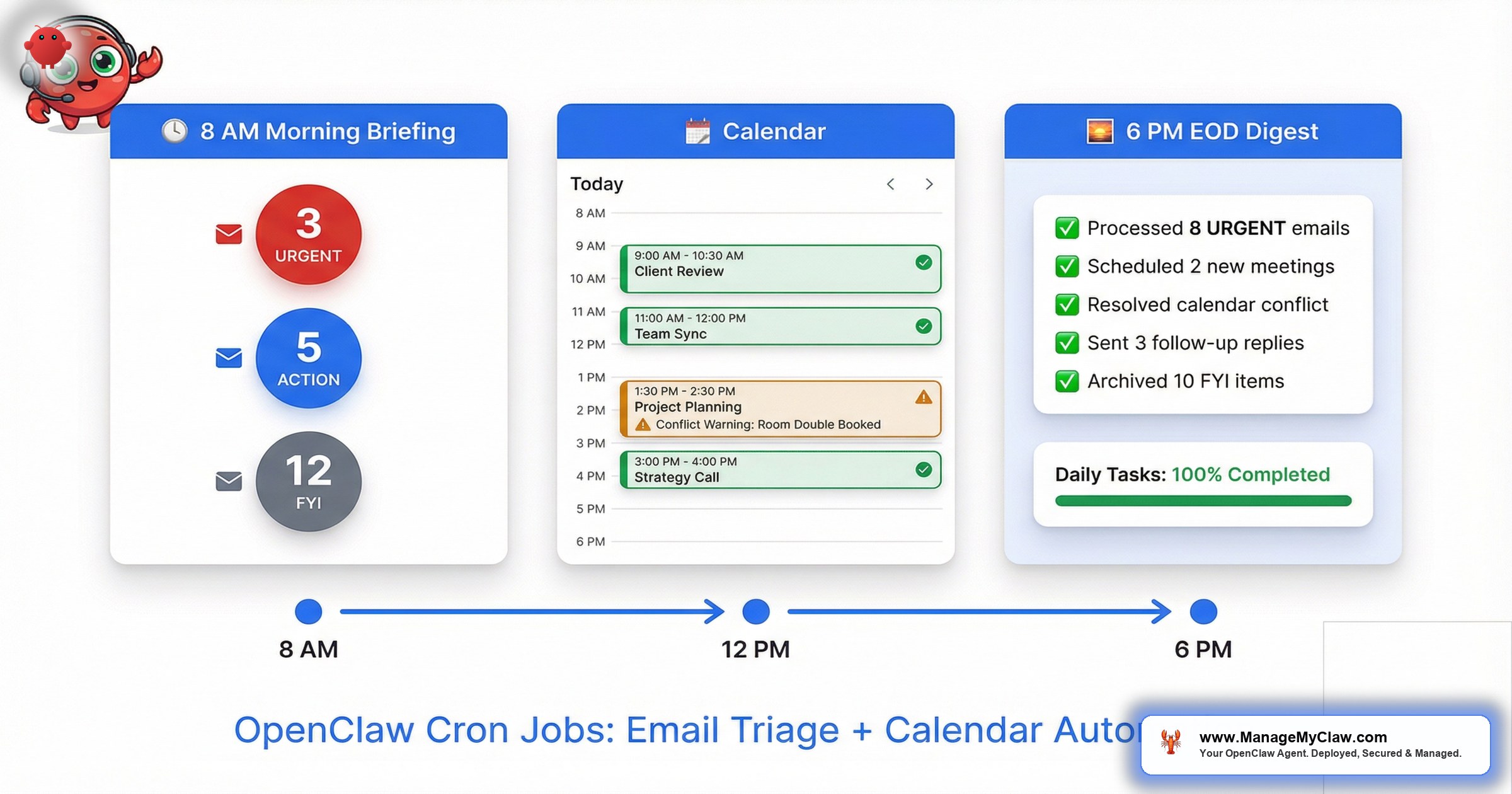
Three cron jobs. That’s it. A morning briefing at 8 AM, meeting reminders every 15 minutes, and an end-of-day digest at 6 PM. Together they replace a $4,000/month executive assistant — and they run on a $12/month VPS.
The catch: getting the openclaw cron email triage syntax right is the easy part. See our Gmail Pub/Sub org policy guide. The hard part is the email triage rules, the deduplication logic, and the draft-only workflow that prevents your agent from accidentally emailing a client at 3 AM. This post covers all of it — complete configs you can copy, not snippets you have to guess around.
This is Spoke 4 of our OpenClaw Google Workspace deployment walkthrough. If you’re following the full series, you should have OAuth configured and SOUL.md security hardened before setting up cron jobs. The email triage and calendar automation rely on the draft-only and never-delete constraints from Spoke 3.
For the complete 12-step deployment walkthrough, see How We Deploy OpenClaw for Google Workspace Automation.
The 3 Cron Jobs Every OpenClaw Deployment Needs
Every production OpenClaw setup runs these 3 scheduled jobs. They cover the daily workflow loop: what happened overnight, what’s happening now, and what happened today.
Morning Briefing — 8 AM Local Time
At 8 AM, your agent pulls today’s calendar, checks unread emails, counts pending drafts, and delivers a single consolidated message to Telegram. Instead of opening 5 apps, you get one notification.
Morning Briefing Config
- Name: Morning Briefing
- Cron:
0 8 * * * - Timezone: Your local IANA timezone (e.g.,
Europe/Paris) - Session: Isolated — fresh context, no bleed from previous runs
- Message: Pull calendar events, unread emails, pending drafts — format as clean summary
Meeting Reminders — Every 15 Minutes
Every 15 minutes, the agent checks if a meeting is about to start. If yes, you get a reminder with the title, time, and attendees. If not, it responds HEARTBEAT_OK silently — no noise in your notifications.
Meeting reminders run 96 times per day. Without --light-context, you’re burning tokens on full context loads every 15 minutes for a simple calendar check. This flag keeps token costs low on high-frequency jobs.
EOD Digest — 6 PM Local Time
At 6 PM, you get a wrap-up: how many emails were triaged, which meetings happened, which draft replies are still waiting for your review, and what time tomorrow’s first meeting starts. It’s the “did I forget anything” check before you close the laptop.
Flag Reference
| Flag | What It Does |
|---|---|
--name | Human-readable label (shows in openclaw cron list) |
--cron | Standard cron expression (minute hour day month weekday) |
--tz | IANA timezone — cron fires at the right local time |
--session isolated | Each run gets a fresh session — no context bleed between runs |
--light-context | Minimal context load — saves tokens on frequent jobs |
--announce | Send the result to a channel (not just log it) |
--channel | Delivery channel: telegram, slack, whatsapp, email |
--to | Channel-specific target (bot handle, phone number, email) |
“These 3 jobs cover 80% of what people hire executive assistants for — daily briefings, meeting reminders, and end-of-day summaries. The API cost for all 3 combined is $5–$15/month.”
— ManageMyClaw deployment dataEmail Triage: The URGENT/ACTION/FYI/NOISE System
Raw inboxes are chaos. 50 emails a day, and maybe 5 actually need your attention. The 4-tier openclaw cron email triage categorization system turns 50 emails into a prioritized queue.
| Tier | Criteria | Agent Action |
|---|---|---|
| URGENT | Known contacts + “urgent”, “asap”, or signals immediate need | Notify immediately + draft reply |
| ACTION | Requires a reply or follow-up within 24 hours | Draft reply + notify in next batch |
| FYI | Informational — receipts, confirmations, shipping updates | Batch into daily summary |
| NOISE | Newsletters, promotions, marketing, spam | Ignore silently |
Real Examples (Anonymized)
URGENT: “Need updated proposal ASAP — board meeting tomorrow”
Agent drafts a reply acknowledging the deadline, checks calendar for conflicts, and sends an immediate notification.
ACTION: New lead asking about availability for a consulting call
Agent drafts a response with 3 available time slots pulled from the calendar, notifies on the next batch.
FYI: Stripe payment confirmation for $1,200
Batched into the EOD digest. No notification, no wasted attention.
NOISE: Marketing newsletter from a tool you signed up for 2 years ago
Ignored silently — no notification, no summary entry.
Draft-Only Workflow: Why Your Agent Should NEVER Send
This is the single most important rule in the entire configuration. Your agent creates drafts. It never sends.
Your agent received an email from a potential client asking to schedule a call. It checked your calendar, found an open slot Thursday at 2 PM, and drafted a reply: “Hi Sarah, Thursday at 2 PM works perfectly.”
The meeting time was wrong. You had a dentist appointment Thursday at 1:30 that wasn’t on your work calendar. If the agent had sent that email, your client would have shown up to a call you couldn’t take.
Your agent signed the email as you. It addressed the client by first name. The tone was perfect. The meeting time was wrong. That’s why drafts exist.
The --draft-only flag on the Gog CLI tool is non-negotiable. It creates a Gmail draft instead of sending the email. Every draft includes a header: [DRAFT – Review before sending] for English emails, [BROUILLON – Vérifier avant envoi] for French emails. You review, fix anything needed, remove the header, and send manually. 30 seconds of review prevents hours of damage control.
The --draft-only flag must be in every email command in your SOUL.md. Without it, your agent will send emails on your behalf — with your name, to your clients, at 3 AM.
Multi-Language Support
If you work across languages, your agent needs to match them. The rule is simple: detect the language of the incoming email, reply in the same language.
SOUL.md Language Rules
- Detection: Detect the language of the incoming email automatically
- French emails: Draft reply in French, use “[BROUILLON – Vérifier avant envoi]” header
- English emails: Draft reply in English, use “[DRAFT – Review before sending]” header
- Notifications: Always in English (or owner’s preferred language)
- French formality: Use “vous” (formal) unless the sender uses “tu”
- Signing: Sign drafts with the owner’s name, never as an AI agent
“The ‘vous’ vs ‘tu’ distinction matters. In French business communication, defaulting to ‘vous’ is safe. Getting this wrong is like addressing a new business contact as ‘bro’ — technically functional, socially catastrophic.”
— ManageMyClaw multilingual deployment guideCalendar Conflict Detection and Working Hours
Email triage alone isn’t enough. When someone asks “are you free Tuesday?”, your agent needs to check the calendar before drafting a reply. The agent activates calendar awareness when it detects scheduling keywords: “meeting”, “call”, “schedule”, “available”, “free”, “réunion”, “rendez-vous”, “disponible”.
Calendar Boundaries
- Never cancel or delete events without explicit approval
- [AUTO] prefix on all agent-created events — distinguishes agent vs human entries
- Default timezone: Your IANA timezone (e.g.,
Europe/Paris) - 15-minute buffer between meetings — no back-to-back scheduling
- Working hours: 9:00–18:00 Mon–Fri — agent won’t suggest 7 AM calls
When you see [AUTO] Call with Sarah Thompson on your calendar, you know the agent created it. Events without the prefix were created by you or by someone who invited you directly. This distinction matters when reviewing your week.
Deduplication: Preventing Re-Triage Loops
This is the section most DIY setups get wrong, and it’s the hardest to debug.
Your agent drafts a reply to an email. Gmail saves the draft in the same thread. The next time the agent polls, it sees the thread was updated (because of its own draft). It re-triages the same email. It drafts another reply. The loop continues.
The solution: A deduplication store — a rolling list of processed thread IDs that prevents re-processing.
Beyond thread deduplication, the agent must also filter out emails sent by the account owner. When you manually send a reply from Gmail, that activity shows up in the next poll. The agent recognizes “this is from yourname@gmail.com” and skips it.
“Deduplication sounds simple until you’re staring at your agent drafting the same reply for the third time at 2 AM. The thread ID check takes 5 minutes to implement. Finding the bug without it takes an hour.”
— ManageMyClaw engineering notesThis is where most DIY deployments burn time. The triage rules work. The cron jobs work. The drafts work. Then the agent starts looping on the same email. Our deployments include deduplication out of the box — it’s baked into the HEARTBEAT.md and AGENTS.md templates we generate for every client.
HEARTBEAT.md vs Cron: When to Use Each
OpenClaw has 2 scheduling mechanisms: heartbeats and cron jobs. They’re not interchangeable.
| Factor | Heartbeat (HEARTBEAT.md) | Cron (openclaw cron add) |
|---|---|---|
| Timing | Approximate — can drift | Exact — fires at the specified time |
| Session | Shared conversational context | Isolated session per run |
| Best for | Polling tasks (check email) | Scheduled deliverables (briefings) |
| Token cost | Higher (full context load) | Lower with --light-context |
| Multiple tasks | Can batch several checks | One task per cron job |
Heartbeat for email polling. The agent checks for new emails every 15–30 minutes and maintains conversational context for deduplication. Cron for scheduled briefings. Morning briefings, EOD digests, and meeting reminders fire at exact times with isolated sessions.
We Automate the Entire Config
Everything in this post — the cron jobs, the SOUL.md email rules, the HEARTBEAT.md polling config, the deduplication logic, the language detection, the calendar rules — gets generated by our deployment scripts. Tell us your working hours and preferred language. We handle the rest.
Our deployment process generates:
- SOUL.md with email triage rules, calendar boundaries, language preferences, and security hardening
- AGENTS.md with the complete email triage workflow (categorize, draft, notify)
- HEARTBEAT.md with polling intervals and deduplication
- All cron jobs with timezone-aware scheduling and the correct channel targets
Every config is timezone-aware (IANA timezones, not UTC offsets), language-aware (draft headers match the detected language), and channel-aware (Telegram, Slack, WhatsApp, or email — your choice).
DIY vs ManageMyClaw: Time Comparison
| Task | DIY Time | ManageMyClaw |
|---|---|---|
| Email triage rules (SOUL.md, 4-tier system) | 2 hours to write and test | Included |
| Cron jobs (briefing, reminders, digest) | 30 minutes | Included |
| Deduplication (thread ID tracking, self-sent filtering) | 1 hour to debug | Included |
| Multi-language (detection, formal/informal matching) | 1 hour | Included |
| Draft-only workflow (Gog flags, header insertion) | 30 minutes | Included |
| Calendar integration (conflicts, working hours, buffers) | 30 minutes | Included |
| Total | 5.5+ hours | Included in every plan from $499 |
At founder rates of $200–$500/hour, that’s $1,100–$2,750 in time — just for the email and calendar automation layer. This doesn’t include the OAuth setup, the server configuration, or the security hardening. The full deployment takes 15+ hours DIY.
Frequently Asked Questions
Can the agent handle more than 2 languages?
Yes. OpenClaw’s underlying model supports dozens of languages natively. The SOUL.md language rules are extensible — add detection criteria and draft headers for each language. A trilingual setup (English, French, German) requires about 10 additional lines in SOUL.md. We’ve configured setups handling 3 languages without issues.
What if I want different working hours on different days?
Add day-specific rules to SOUL.md. Instead of “Working hours: 9:00–18:00 Mon–Fri,” write “Mon–Thu: 9:00–18:00, Fri: 9:00–16:00, Sat: 10:00–14:00 (urgent only).” The agent interprets natural language scheduling rules. You can also set different availability windows for different types of meetings.
How do I add more cron jobs?
Run openclaw cron add with the same flag structure shown above. Common additions: a weekly report (Monday 9 AM), a calendar conflict check (every 3 hours), or a Gmail watch renewal (daily 3 AM — renews the Pub/Sub subscription).
What happens if the agent misclassifies an email?
It happens. Two corrections: first, refine the categorization rules in SOUL.md by adding the sender or keyword pattern to the correct tier. Second, use the dedup store — once you manually handle the misclassified email, the agent won’t re-process it. Over time, adding 3–5 sender-specific rules gets classification accuracy above 95%. ManageMyClaw Managed Care clients can request rule updates as part of their monthly 2 hours of hands-on support.
Already running OpenClaw? View Managed OpenClaw Deployment to add email automation to your existing setup.
Not affiliated with or endorsed by the OpenClaw open-source project.